Thursday, March 6, 2014

What is DNS Devolution?

I came across this new buzz word when studying to upgrade my MCITP: EA to MCSE: Server Infrastructure.  This is a terminology I have never come across before and was not in my MCITP: EA.

Devolution is a method which allows member computers that are part of a child domain to resolve hostnames in parent domains.  Devolution creates new FQDNs by appending a single name queried like "Clints-PC" with parent suffixes for domains above it.

For example Clints-PC is in a child domain called "australia.corp.avantgardetechnologies.com.au" where avantgardetechnologies.com.au is the root domain with two child domains.  I have painted this in the following diagram.
 

If Clints-PC goes and pings "Avantgarde-FS01" the following will happen:

Clints-PC will query Avantgarde-FS01
Clints-PC will then query Avantgarde-FS01.australia.corp.avantgardetechnologies.com.au
Clints-PC will then query Avantgarde-FS01.corp.avantgardetechnologies.com.au
Clints-PC will then query Avantgarde-FS01.avantgardetechnologies.com.au

That is DNS Devolution my friends in a nutshell, it provides member computers the ability to search up the tree using different FQDN's until it can resolve one.

Also of importance, you can configure computers with a devolution value which is represented by a number.  This tells computers how far up the tree they can query before devolution will terminate.  The ability to control how far up the tree termination occurs is a new feature introduced in the Windows 7 / 2008 R2 operating systems.  For more information on this I recommend having a read of the following article http://technet.microsoft.com/en-us/library/ee683928.aspx

Now there are a few things you must also know about DNS Devolution.  Many companies that run multiple domains generally configure a "Global Suffix Search List" with Group Policy.  This specifies an order of domain names a single name resolution attempt will try and qualify itself against.  For example, lets say I have a global suffix search list as follows configured on the australia.corp.avantgardetechnologies.com.au domain pushed out with Group Policy:
  1. australia.corp.avantgardetechnologies.com.au
  2. sales.avantgardetechnologies.com.au
  3. avantgardetechnologies.com.au
With this configured, Clints-PC will now attempt to resolve the Avantgarde-FS01 in the order above and no longer work its way up the tree.  As soon as you configure a global suffix search list, DNS Devolution automatically gets disabled.

The second important thing you need to know about DNS Devolution is you must have "Append parent suffixes of the primary DNS suffix" check box selected under the Advanced TCP/IP settings for IPv4/IPv6.

That's it in a nutshell guys!  Thanks for reading.

Tuesday, March 4, 2014

OWA Search - The action couldn't be completed. Please try again.

I came across a weird problem today when searching for emails in Outlook Web App, the following error was returned:

The action couldn't be completed.  Please try again.


In the server event logs, the MSExchangeIS Mailbox Store service generated Event ID 9842

Log Name:      Application
Source:        MSExchangeIS Mailbox Store
Date:          4/03/2014 6:14:39 PM
Event ID:      9842
Task Category: Content Indexing
Level:         Error
Keywords:      Classic
User:          N/A
Computer:      Server01.at.local
Description:
Function CISearch::EcGetRowsetAndAccessor detected that content indexing was disabled for database 'Mailbox Database 0742665828' because of error '0x80041820' from MSSearch.


I looked into this issue online, and saw two blog posts which both indicate to run setup /PrepareAD again on the Exchange server:
I do not understand what the point of this.  Once an Active Directory class object or attribute has been created, it is impossible to delete it.  As of 2003 Forest Functional Level (FFL), Microsoft put the ability in place to disable attributes/class objects.  However you cannot delete objects.  As setup /PrepareAD is run when installing Exchange or applying a service pack, it never needs to be run again.

In my environment I restarted the following services in this order:
  1. Microsoft Exchange Search Indexer
  2. Microsoft Search (Exchange)
  3. Microsoft Exchange Information Store
After restarting the services in this order, testing Outlook Web App I was able to search for content again.  No need to run the setup /PrepareAD command!

Thursday, February 27, 2014

Backup Exec 2010 and Exchange 2010 Recovery Problems

Yesterday I responded to an emergency callout to a customer with 800 users running a single Exchange 2010 SP3 UR3 multi role server running on Windows Server 2008 R2 SP1.  The server server would not boot and was simply blue screening.  We were not able to access Windows in anyway even by booting into safe mode and had no indication as to why the failure occurred as we could not access the server event logs.  The Exchange 2010 SP3 server was running on top of a VMware vSphere 5.1 clustered environment hosted on shared storage.

This server was one I setup a couple of years back and as a result it followed my standard multi-role Exchange server build which consists of two or more NTFS volumes.
  • Volume 1 (SYSTEM) consists of Operating System, Page File and Exchange System Files.
  • Volume 2 (Logs  + Database) which contain the Exchange 2010 database and log files
Due to the changes in Disk I/O it is no longer a requirement to separate transaction logs from the Exchange database as I/O is no longer an issue.  Remember Exchange 2010 has a 90% disk I/O reduction over Exchange 2003.

Note: This server only had two volumes however additional volumes can exist in the event additional databases are required.

As the system volume was corrupt and no longer booting, this needed to either rebuilt or restored from backup.  The database/log volume was assumed to be fine and the plan was to simply re-attach the database/log files after the system volume containing Windows and Exchange server was restored.  We did have a full backup of the Exchange 2010 server through Backup Exec 2010 R3 SP3 which was taken on the weekend of both the system volume and system state.  As a result we had two methods for recovering this Exchange 2010 SP3 server bringing it back online:
  • Recover the servers system volume and system state using the last backup taken with Backup Exec and relink it to the database/log volume.
  • Recover the Server by performing an Exchange Recover Server installation to reconnect a newly installed Exchange server to the existing configuration stored in the Active Directory configuration partition using the Setup /m:RecoverServer switch.
It was deemed at the time, the best course of action would be to recover the server through Backup Exec as this would ensure things such as the digital certificate and Exchange Web service URL addresses would all be restored back to their original state.

Backup Exec 2010 R3 SP3 Issues

I have been working with Backup Exec for over 8 years now back when it was owned by a company named Veritas.  Every time I have had to perform a full system restore of a failed server, it has always been a cumbersome process aligned with multiple challenges.  After the so many years of having this product on the market, you think the functionality of the "Backup" and "Restore" processes would be completely ironed out and bullet proof, after the primary purpose of this product is to backup and restore data.  However, this my friends is what makes Backup Exec "special", the ability to cause companies pain by not performing these tasks.

Despite having used Backup Exec to recover servers in the past, from the history experienced with the product, to give myself the best chance for a successful restore I put what I knew aside and followed the Symantec online documentation exactly.  To restore a server running Windows Server 2008 or Windows Server 2008 R2, Symantec has published a knowledge base article on their support page to restore a remote Windows 2008 computer which has completely failed.  This is the most important support page article they could publish online as it documents the steps to restore a failed Windows Server, again the whole point of a backup and restore program.  As a result you think the instructions documented on this particular article would be 100% accurate and reviewed carefully by the Symantec support team.  Unfortunately, this is not the case and the below article does have technical mistakes to performing a successful restore of a Windows 2008 server.

http://www.symantec.com/business/support/index?page=content&id=TECH86323

In the instructions taken from the above article entitled "Disaster Recovery restore steps for a remote Windows 2008 computer" it states to:
  • Build a new Windows Server 2008 computer by performing a fresh install
  • Provide it the same computer name as before
  • Ensure it has the same disk configuration as the previous system
  • Do not join the new computer to an Active Directory domain, instead leave it as Workgroup.

Following these instructions exactly, I was unable to proceed with the restore documented further down in step 10 in the documentation.  At this point we raised a support case with Symantec Gold Support to assist us with restoring the server.  The Symantec support engineer after taking the case advised us that the instructions documented online were incorrect and the server needed to be joined to the domain.

After joining the computer to the domain I was able to proceed with performing the restore task.  The task proceeded successfully until it got to 91% where the following error was generated.

V-79-57344-782
The job failed with the following error: Unable to swap out active registry hive with new data

 
After rebooting the server being restored, Windows Boot Manager was unable to boot the server as it was left in a corrupt state.
 
 
At this point the Symantec engineer asked us to retry the process.  It failed again, exact same experience.  At this point the company had been without email for over 12 hours due to the lengthy timeframe Backup Exec takes to restore data.

Symantec then ran a tool on the Backup Exec media server to collect a bunch of logs for analysis and advised us that they require 48 hours to review why the server restore is failing.  When we asked them the question "so you expect us to be without email for 48 hours", their response was yes there is nothing we can do.

Exchange 2010 Recover Server Installation

At this point I advised my customer that we need to forget about Backup Exec and proceed doing a native Exchange 2010 Recover Server installation using the Setup /m:RecoverServer, something I had faith in working.  We rebuilt the Windows 2008 R2 server, provided it the same host name, re-joined it to the domain, installed all windows updates along with Exchange 2010 pre-requisites.

One thing I noticed is the Exchange 2010 SP3 media does not allow you to run Setup /m:RecoverServer, it errors out.  You must run the Recover Server installation from Exchange 2010 SP2 media and then after the install proceed to installing Exchange 2010 SP3 followed by the latest update rollup.

We had the server up within 2 hours of starting this procedure.

Summary

There is no denying that the restore procedure documented under http://www.symantec.com/business/support/index?page=content&id=TECH86323 should have worked for servers backed up using a Backup Exec agent.

This being said, it is important to note that Backup Exec has better methods for backing up and recovering servers which this customer is not currently following.  In virtual environments running VMware ESX it is recommended that companies present the VMware datastores running Virtual Machine File System (VMFS) to the Backup Exec media server.  Whilst Windows cannot read VMFS, Backup Exec can allowing it to directly backup the Virtual Machine hard disks (VMDKs) and configuration files.  This backup method provides faster backup speeds and reliable restores as Backup Exec no longer needs to rely on Backup Exec agents, instead it can communicate directly with vCentre to snapshot virtual machines for backup purposes and restore entire virtual machines back to their original state.

In addition to virtual machine level backups, Symantec Backup Exec 2012 also offers an alternative way for recovering servers backed up using a Backup Exec agent.  Backup Exec 2012 provides a recovery media for companies to boot off providing the ability to directly restore a server taken from an agent based backup.  This means companies no longer need to:
  • Install Windows Server from Microsoft Installation Media
  • Provide the server the same host name and drive letters
  • Join the server to the domain
  • Deploy the Backup Exec Agent
  • Start the Recovery Process
The Backup Exec recovery media significantly reduces the time required to perform a bare metal restore of a failed Windows Server.

For companies which have already made significant investment in Backup Exec, before throwing away the investment with Symantec, it is advised that customers review their backup strategy to ensure it suits the infrastructure within their company.

Tuesday, February 25, 2014

Stellar Phoenix EDB to PST Converter Review

Stellar Phoenix EDB to PST Converter is an application which allows administrators to export mailboxes from an online or offline Exchange EDB database to PST format.  It is a simple and user friendly application to use and navigate which is handy for even the most inexperienced administrators.

When launching the application, Administrators are presented with two options:
  • Convert Online EDB to PST
  • Convert Offline EDB to PST

Convert Online EDB to PST Option

The convert online EDB to PST option allows administrators to connect to a live Exchange environment and export mailboxes to PST while users are working.  This option requires you to specify the connection details of your Exchange server along with credentials for a user account which has administrative access to export mailboxes.  To perform the export the credentials specified must also have access to all user mailboxes across the Exchange organisation.

The Online EDB to PST conversion option is a nice to have option due to the user friendly nature of the application however it is not something I would recommend to companies as a reason to purchase the Stellar Phoenix EDB to PST Converter application.  Microsoft has already shipped tools with all versions of Exchange to mass export user mailboxes to PST from online mailboxes.  For Example, Exchange 5.5, 2000 and 2003 has a tool named ExMerge which has the ability to export all mailboxes to separate PST files for all users in an Exchange organisation.  Exchange 2007, 2010 and 2013 has the ability to export all mailboxes to PST files using PowerShell.  Exchange Management Shell has a Export-Mailbox or New-MailboxExportRequest depending on what version of Exchange your currently running.

This being said, these tools provided by Microsoft only allow you to export entire mailboxes to PSTStellar Phoenix EDB to PST Converter allows you to select individual folders or messages from an Exchange Mailbox and export only a subset of data which is relevant to PST.  This granular selection provided by the application provides administrators with more flexibility when managing their online exports.

Convert Offline EDB to PST Option

Convert Offline EDB to PST option allows administrators to extract PST files from an EDB file without the presence of an Exchange server.  This is very handy for companies who want to restore select emails from an offline EDB backup file without restoring the entire EDB file back into an Exchange environment such as a Recovery Storage Group (RSG).

When you choose to select Offline EDB to PST conversion, the tool will ask you to specify a path to the EDB file along with specifying what version of Exchange the EDB file was created in.


After selecting the EDB file the application will break down all mailboxes available for export.  As an administrator you can select which mailboxes you wish to export to PST including granular selection of which folders/items you wish to export from each mailbox.


After the selection process is completed, click the save button which is represented by an old fashion floppy disk.  Specify a folder which you would like to export all PST files to.


The tool will then go through and begin the process of exporting all mailboxes selected to individual PST files.  The PST files will be created in the format of "mailboxname.pst"


Exchange 2013 Support

At the time of writing this review,  Stellar Phoenix EDB to PST Converter does not currently support Microsoft Exchange Server 2013 or 2013 SP1 mailbox database files.  Stellar Phoenix said this is currently being worked on and support for this will be added to the product in the next couple of months.

Licensing and Pricing

Stellar Phoenix EDB to PST Converter has two licensing options, "Administrator License" and "Technician License".

The Administrator License allows for the product to be installed on unlimited workstations within a single site (or physical office).

The Technician License allows for the product to be installed on unlimited workstations across all physical offices throughout an organisation.

It is important to note that in both licenses, only a single conversion can be performed simultaneously.

The Administrator License is priced at $399 USD while the Technician License  is priced at $499 USD.  These prices are correct as of this writing but are subject to change.  For the latest pricing on Stellar Phoenix EDB to PST Converter, please refer to the following web page:

http://www.stellarinfo.com/email-repair/edb-pst-converter/buy-now.php

Windows Server 2012 Remote Access - Settings for server cannot be retrieved.

A customer of mine had a newly setup Windows Server 2012 R2 remote access server configured to use a static address pool.  When opening up Remote Access Management Console they received the following error:
 
Settings for server cannot be retrieved.  VPN is configured to allocate IP addresses using a static address pool, but no IP address ranges are configured.
 
 
 My customer did not want to use a static address pool but instead use the existing DHCP server to provide IP addresses to remote access clients.  To configure the remote access server to use the existing DHCP server, use the following command.
 
Set-VpnIPAddressAssignment -IPAssignmentMethod 'DHCP'
 

After using this PowerShell command, simply reopen the Remote Access Management console and the issue will no longer occur.

Exchange 2013 Ready for Production!

Exchange 2013 after a long wait is finally ready for production.  Exchange 2013 was released by Microsoft back October 2012 with a number of limitations and problems.  The removal of EMC and major changes to the product architecture had the Exchange community stunned.

The original release of Exchange 2013 outraged some members of the IT community as the product was not fit for production with some saying Microsoft should have held off on the product release until the product was in a more developed state.  The original release was full of bugs and lacked fundamental features such as the ability to co-exist in an Active Directory environment running Exchange 2007 or Exchange 2010 making migrating to Exchange 2013 impossible meaning it could only be deployed in greenfield deployments.

Up until the 24th of February 2014 another major product limitation existed such as the ability to run Exchange 2013 on the Windows Server 2012 R2 operating system.  Customers were waiting for over half a year for support to be added to the product as Windows Server 2012 R2 has significant enhancements operational interface making the original Windows Server 2012 feel like a prototype.

Finally as of the 25th of February 2014, Microsoft has finally released the first official service pack to Exchange 2013 which has resolved many of the original bugs which came with the RTM build as well as adding significant enhancements.  New enhancements to the product include but are not limited to:
  • Windows Server 2012 R2 Support
  • The ability to log Cmdlet commands in the Exchange Admin Centre (EAC)
  • Edge Transport Role
  • New Communication Method between Exchange and Outlook called MAPI over HTTP, a replacement for RPC over HTTP.  This needs to be enabled and is disabled by default.  MAPI over HTTP provides significant enhancements.
  • SSL Offloading support between Mailbox and Client Access Servers
  • Significant enhancements to Exchange 2013 Data Loss Protection (DLP).  For more information refer to http://blogs.technet.com/b/exchange/archive/2014/02/25/data-loss-prevention-in-exchange-just-got-better.aspx
Almost a year and a half later after the products initial release, Exchange 2013 is ready for production.  It is now in a stable state and packed full of rich features.  For more information on changes made in Exchange Server 2013 Service Pack 1, please refer to the official blog release post which can be found here:

http://blogs.technet.com/b/exchange/archive/2014/02/25/exchange-server-2013-service-pack-1-available.aspx

To download Exchange 2013 Service Pack 1, please navigate to the following website:

http://www.microsoft.com/en-us/download/details.aspx?id=41994

VMware to HyperV Migration

Microsoft has released a small but powerful tool for converting VMware Virtual Machines to HyperV virtual machines called Microsoft Virtual Machine Converter (MVMC).  This tool is able to convert the entire virtual machine including virtual disk and configuration files to HyperV format ready to use on a Windows Server 2012 hypervisor.

Microsoft Virtual Machine Converter comes part of the Microsoft Virtual Machine Converter Solution Accelerator package which can be downloaded from the following URL:

http://www.microsoft.com/en-us/download/details.aspx?id=34591

Before installing the product, you must ensure your system is running .NET Framework version 4.5 which is required by the application.

There tool is available in two form factors:
  • Microsoft Virtual Machine Converter Solution Accelerator
  • Microsoft Virtual Machine Converter Plug-in for VMware vSphere Client
Both of these factors can be downloaded from the above Microsoft TechNet page.

The Microsoft Virtual Machine Converter Plug-in for VMware vSphere client allows you to convert the virtual machines straight the vSphere client by simply right clicking the virtual machine and selecting "Convert to Hyper-V virtual machine"

 
It is important to note that as of this writing only the following VMware platforms are supported for this method of migration.
  • vCenter Server 5.0
  • vCenter Server 4.1
  • VMware ESXi Server 5.0
  • VMware ESXi/ESX Server 4.1
My environment is running VMware ESXi Server 5.5 and as a result this is not supported so the following error was received:

Microsoft Virtual Machine Converter is not compatible with this version of vCenter/ESX/ESXi server.
 
 
 If I was using an older version of ESX, you would see a wizard as shown on the following blog post:

http://www.ivobeerens.nl/2012/07/30/convert-vmware-to-hyper-v-vms-with-microsoft-virtual-machine-converter/

You can however convert VMware 5.5 vmdk files to VHD using the command line utility.

Simply use the following symtax:

MVDC.exe "vmdk source path" "target"

For example in the following screenshot I have converted a Windows 8 vmdk file to a VHD file.


It is also possible to convert VMware Virtual Machine configuration files to HyperV configuration files using the MVMC.exe command line utility.

For more information on this tool please see the official Microsoft TechNet article available from:

http://technet.microsoft.com/en-us/library/hh967435

Friday, February 21, 2014

Error: 0xC004F050 The Software Licensing Service reported that the product key is invalid

Today when attempting to install a Microsoft Office 2010 KMS Key to a new KMS server, the following error was experienced.


Error: 0xC004F050 The Software Licensing Service reported that the product key is invalid


Resolution

Microsoft Office 2010 keys cannot be installed with the slmgr.vbs script, instead you must use the Microsoft Office 2010 KMS Host License Pack.  This is available from the following download link:

http://www.microsoft.com/en-us/download/confirmation.aspx?id=25095

Run the wizard and enter the Office 2010 KMS product key when requested. No other activation commands are required from slmgr.

Thursday, February 20, 2014

Weird Exchange Performance Issues

This post is interesting as it is one of the weirdest Exchange 2010/2013 performance problems I have seen in my career for a while.  In writing this blog post, hopefully other organisations with the same bizarre issue can find this post hopefully resolve their Exchange performance problem.

This post will cover the following topics:
  • Symptoms of the problem
  • Troubleshooting Steps
  • Issue Resolution
My customer was running a single Exchange 2010 SP3 CU3 multi-role server however it needs to be noted this issue can also occur for Exchange 2013 based on what I have read.

Symptoms

RPC Response Times

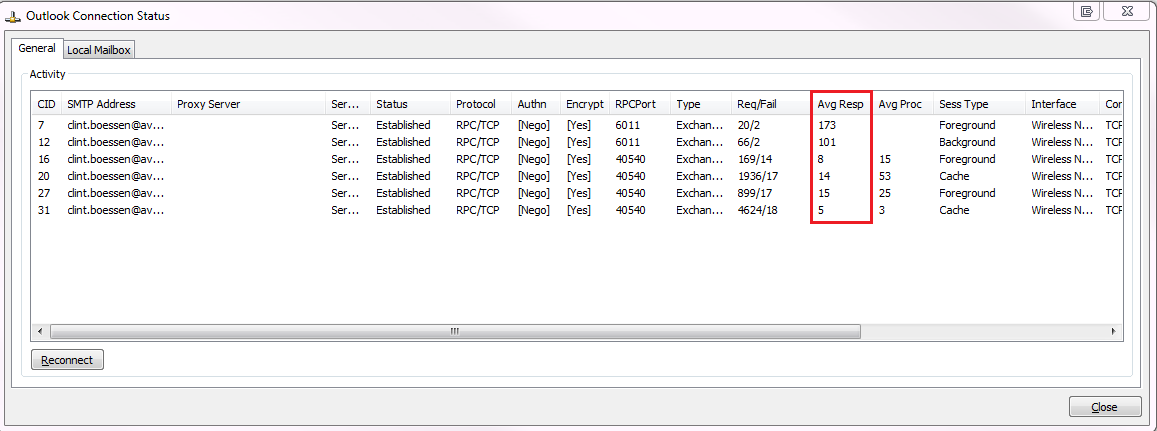
The Outlook RPC Response times we were seeing from clients connecting on the same subnet as the Exchange server were abnormally high.  We were seeing response times in the 10,000 - 20,000 facinity consistently across multiple clients.  Response times should generally be below 50 and sometimes higher for remote clients in branch offices or clients connecting using RPC over HTTP as shown in the following screenshot.


Autodiscover Requests Timing Out

Autodiscover requests were randomly timing out as the Exchange server was taking to long to respond.  The following error was being generated in the Test E-mail AutoConfiguration tool:

GetLastError = 12002; httpStatus=0
Autodiscover internet timeout against URL https://exchangeserver.com/autodiscover/autodiscover.xml


Mail Tips Issues

Users were complaining Mail Tips was failing across multiple outlook clients.  When composing new emails instead of receiving a mail tip, in the same area where the mail tips are displayed users would receive an error indicating there was a problem receiving mail tips from the server.  This is due to the server not responding to the mail tips request in a timely fashion.

Outlook Web App Performance Problems

Loading the Outlook Web App page and logging in was extremely slow taking approximately 45 seconds for the to completely load.  Navigating the mailbox, composing new emails and accessing features such as Exchange Control Panel were also extremely slow and barely usable.  Sometimes the server did not respond fast enough and the web page would simply timeout.

Microsoft Outlook Load Times

Launching the Microsoft Outlook client was extremely slow and took approximately 21 seconds across all clients instead of the snappy 2-3 second load time.

Troubleshooting Performed

I was contracted to come in and resolve the performance problems for the customer.  During my initial 4 hours troubleshooting the performance issues I went through and looked at a large number of items which generally contribute to Exchange performance issues.

General Server Performance

The general server performance was looked at including items such as physical disk, memory, cpu and network utilisation.  Items examined included:
  • Number of hard page faults
  • Disk queue length
  • Disk Time
  • CPU Utilisation
  • Memory utilisation
  • Network number of packets sent/received
  • Network bandwidth utilisation 
A few other related counters in performance monitor were also examined, all within normal readings.

Network Stack Tweaking

For testing the following changes were made to the Windows network stack:

netsh int tcp set global chimney=disabled
netsh int tcp set global rss=disabled
netsh int tcp set global taskoffload=disabled
netsh int tcp set global autotuninglevel=disabled

These had no impact and changes were reverted.

Exchange User Monitor

The Exchange User Monitor was ran on the server to verify that no significant load was placed on the server from one user session from virus or bad Outlook profile.  Readings from ExMon were normal.

Anti-Virus or Third Party Applications

AntiVirus or Third Party Applications were investigated.  No real time file scanning AV is installed on the Exchange server (as recommended by Microsoft).

The only third party application installed is Exclaimer Outlook Signature which is found not to be causing an issue.

Network Connectivity Test

A network connectivity test was performed between the Exchange server and a client on the same subnet suffering performance issues using a bandwidth measuring tool known as iPerf.  The network connectivity test showed the client was almost able to achieve gigabit speeds to the Exchange 2010 server over the local network segment.


IIS Application Pools

IIS Application pools were flushed with an IISReset to rule out App Pool Recycling and memory usage/limit/leaking related issues which can significantly impact performance of web based applications on an IIS server.  In the event it was related to an IISApp pool issue, an IISReset would generally restore performance for a short period of time which did not happen.

Certificate CRL Checking

When using public certificates, the service in which the certificate is associated with must be able to contact the public certificate revocation list.  In the event it cannot, this can cause web based applications to be sluggish as we are waiting for CRL timeouts to occur on the backend.  I tested this from the Exchange server and was able to contact the CRL lists meaning there was no firewall blocking this communication.

Exchange Troubleshooting Assistant

The Microsoft Exchange Troubleshooting Assistant also known as ExTRA can be used to identify performance related issues on an Exchange 2010 server.  This was run and the report flagged nothing of interest.

Process Monitor

Microsoft system internals process monitor (procmon.exe) was run on the Exchange 2010 server to identify application loops or unwanted activity which may be related to slow websites loading.  Output from procmon was normal.

Exchange Performance Counters

Some core Exchange Performance Counters were checked on Exchange including things such as:
- MSExchangeIS\RPC Requests (should be below 30)
- MSExchangeIS\RPC Averaged Latency (should be below 50ms)

These were all normal. 

Exchange Event Log Level

I increased the event log level for OWA for testing purposes.  No problems could be identified relating to performance problems from OWA Event Logs.


IPv6 Disabled

IPv6 can be known to cause performance issues with Microsoft Exchange.  As a result for testing I advised the customer to turn of IPv6 by disabling it on the network interface adapter on the Exchange 2010 server and by putting in place the DisabledComponents registry DWORD value as required by Microsoft KB929852.  This had no effect and the issue continued to occur.

Second Exchange 2010 Server

After all troubleshooting performed above I advised my customer to build a new Exchange 2010 server as it was they had a simple environment with only a single Exchange 2010 server.  We performed the following steps:
  • Performed a fresh install of Windows 2008 R2 with all latest updates
  • Installed Exchange 2010 with SP1 multi role deployment
  • Installed Exchange 2010 SP3 update
  • Installed Exchange 2010 SP3 CU3
  • Performed minor core configuration tasks such as configuring public folder replication, OAB Distribution, Enabling Outlook Anywhere, Configuring the Digital Certificate and a few other things.
  • Moved a few test users to the new Exchange 2010 server for testing purposes.
The test users experienced the exact same performance issues on the new server as those on the old server despite it being a fresh installation of Windows Server and Microsoft Exchange.

Resolution

My customer stumbled across the following webpage where another company was having a similar issue with their Exchange server performance:

http://www.outlookforums.com/threads/91195-exchange-2013-outlook-2010-slow-startups/

This other company with the similar issue resolved it by Disabling IPv6.  Instead of manually disabling IPv6 like I did in my step above instead used the Microsoft FitIt tool to disable IPv6 which is available on the same knowledge base article, KB929852.

http://support.microsoft.com/kb/929852

After running the Microsoft FixIt tool, the customer expressed to me that the issue is resolved and Exchange is no longer under performing.

What puzzles me however is the Microsoft FixIt tool as documented simply creates the DisabledComponents registry key, something which I created manually during troubleshooting.  This is documented under "For more information" in the manual section of KB929852, the same KB I used to create my manual registry key.  Perhaps it makes another change which I am unaware of and is not documented on the knowledge base article?  It might be worth while testing this theory by running an application such as RegSnap before and after the tool is run to identify exactly what changes it has made.

The other thing which is important to note, Exchange generally should be deployed with IPv6.  I have many customers running Exchange 2010/2013 servers with IPv6 enabled and no performance issues.  This particular customer did express to me that around the time the issue started occurring, they also had an upgrade on their core switch.  This network infrastructure change should not be ruled out as possibly effecting the performance of clients connecting to Exchange.

This was definitely one of the most puzzling problems I have dealt with in a while.  If you do have the same problem as the symptoms expressed in this post, please do try running the Microsoft FixIt tool as documented above.  If this also resolves your problem, please do comment as I am looking forward to hearing your feedback.

Thanks for reading.
Sunday, February 2, 2014

Making DNS GlobalNames Zone Available to Other Forests

In large complex forests with multiple domains, the DNS Suffix search list can be extensive and can result in DNS name resolution failing.  Companies with a large number of domains often used WINS to provide single name resolution across all domain infrastructure along side DNS.  This is because it was not possible to provide a single name resolution technology which you could span across your entire Active Directory infrastructure using DNS.

Starting from Windows Server 2008, Microsoft introduced a new DNS concept known as GlobalNames which was a move to permanently decommission the legacy WINS technology to enable single name resolution.

When deploying GlobalNames you first enable it on all DNS servers in your domain using dnscmd.exe:

dnscmd ServerName /config /enableglobalnamessupport 1

You then create the GlobalNames zone file and ensure it replicates to all DNS servers in your Forest (best practice) or alternatively create a separate application partition to hold the GlobalNames zone which gives you the flexibility of choosing which DNS servers in your forest hold this zone.  The whole point of GlobalNames is generally to allow DNS servers in other Active Directory domains (within the same forest) to all share the single name resolution hence removing the need for complex DNS Suffix Search Lists.

But what if you want DNS Servers in other forests to use the GlobalNames zone?

This is a little more complicated as we cant simply replicate the GlobalNames DNS zone to DNS servers in other domains due to the fact it is another Active Directory forest, it runs under a complete different set of security identifies and does not adhere to Ticket Granting Tickets (TGTs) handed out by Kerberos KDC's from another forest.

What Microsoft has done to allow other forests to share a GlobalNames DNS zone is to provide companies the ability to create a service location (SRV) resource records in the remote forests DNS zone.  This is done as follows:

_globalnames._msdcs.remotedomain.local which must point to an FQDN of a DNS server that hosts the GlobalNames zone in the main forests.

Fore more information please refer to the following TechNet article:

http://technet.microsoft.com/en-us/library/cc731744.aspx

I hope this post has been helpful.

Saturday, February 1, 2014

What is the krbtgt account in Active Directory?

The KRBTGT account is a user account which resides inside the domain users container in every Active Directory domain.  This service account is critical and is required by the Kerberos Key Distribution Centre (KDC).

This account must never be deleted.
This account must never be renamed.

Before reading this post, I hope you have an understanding of how the Kerberos authentication protocol works.  If not I encourage you to watch the following video entitled "How Kerberos Works" by Don Jones, a CBT Nuggets instructor.  This can be found on the following link:

https://www.youtube.com/watch?v=kp5d8Yv3-0c

From watching this video you will understand that all users and devices on a network must be assigned a Ticket Granting Ticket (TGT) from the KDC which then enables them the ability to access resources on the network.

The KRBTGT account is critical to this process as the KDC uses the password derived from the KRBTGT account to encrypt each TGT assigned to users and devices on the network.  All KDC servers on the network have the KRBTGT account password because all domain controllers have this account.  The KRBTGT account is created upon the promotion of the first domain controller in a new Active Directory domain.

If you haven't already guessed, KRBTGT stands for "Kerberos Ticket Generating Ticket Account".

Read Only Domain Controllers

There are a few things to be aware of with the KRBTGT account when dealing with Read Only Domain Controllers.  RODC's also act as a KDC for branch offices and as a result require a KRBTGT account.  However, RODC's do not contain the passwords of all accounts in an Active Directory domain, only passwords specified by an administrator defined in the Password Replication Policy (PRP) - for more information see http://technet.microsoft.com/en-us/library/cc730883.aspx

Now because the password associated with the KRBTGT account is so sensitive, we do not want this residing at branch sites as the whole point of an RODC is to implement it when physical security to the server is low.  To ensure that the KRBTGT of a compromised RODC can't be leveraged to request tickets to other domain controllers, each RODC has a special local KRBTGT account. This account has the format KRBTGTXXX, where "XXX" is a string of random numbers. This random string uniquely identifies the RODC and is generated when an RODC is installed.

The accounts generated for each RODC appear in the users container on all Active Directory domain controllers in the domain.  As a result all writeable domain controllers also keep a copy of the KRBTGT password hash.

Lastly, if an RODC receives a session ticket request based on a TGT that isn't valid, a Kerberos error will occur asking the client computer to request a new TGT.  If the RODC does not have a copy of the users password hash, the RODC will forward the TGT request to a writable domain controller.

Wednesday, January 22, 2014

Moving Mailbox - Active Directory operation failed

When attempting to move a users mailbox from Exchange 2003 to Exchange 2010, the following error was experienced.

Summary: 1 item(s). 0 succeeded, 1 failed.
Elapsed time: 00:00:00


Username
Failed

Error:
Active Directory operation failed on DC.domain.local. This error is not retriable. Additional information: Insufficient access rights to perform the operation.
Active directory response: 00002098: SecErr: DSID-03150BC1, problem 4003 (INSUFF_ACCESS_RIGHTS), data 0


The user has insufficient access rights.
Click here for help...
http://technet.microsoft.com/en-US/library/ms.exch.err.default(EXCHG.141).aspx?v=14.3.169.1&t=exchgf1&e=ms.exch.err.Ex6AE46B
Warning:
When an item can't be read from the source database or it can't be written to the destination database, it will be considered corrupted. By specifying a non-zero BadItemLimit, you are requesting that Exchange not copy such items to the destination mailbox. At move completion, these corrupted items won't be available in the destination mailbox.


Exchange Management Shell command attempted:
'domain.local\users\username' | New-MoveRequest -TargetDatabase 'MailboxDatabase4' -BadItemLimit '10'

Elapsed Time: 00:00:00


The problem was caused by incorrect permissions on the AD user account.  Re-enabling "inherit permissions" on the user account resolved the issue.


Sunday, January 19, 2014

"Try Next Closest Site" Group Policy Setting

In a previous post I wrote about how the DC Locator component of Windows locates a domain controller.  This post can be found on the following URL:

http://clintboessen.blogspot.com.au/2010/05/how-clients-locate-domain-controllers.html

In this post we are going to look at a feature called "Try Next Closest Site" which is enabled on Windows Vista upwards clients via Group Policy.

In Windows 2000/XP/2003 when all domain controllers in an Active Directory site fail, there is a chance workstations may failover to another Active Directory site at a higher cost then the most preferable one as defined in Active Directory Sites and Services.  Changes have been made to the DC Locator algorithm starting from Windows Vista/2008 Server onwards which improves the DC Locator algorithm to ensure workstations always communicate with the next closest Active Directory site as defined in Sites and Services.

I strongly recommend this setting always be configured if your workstations are Windows Vista or higher.  To enable this setting perform the following.

1.Click Start, click Administrative Tools, and then click Group Policy Management.

2. If the User Account Control dialog box appears, confirm that the action it displays is what you want, and then click Continue.

3.Double-click Forest:forest_name, double-click Domains, and then double-click domain_name.

4.Right-click Default Domain Policy, and then click Edit.

5.In Group Policy Management Editor, in the console tree, go to Computer Configuration/Policies/Administrative Templates/System/Netlogon/DC Locator DNS Records.

6.In the details pane, double-click Try Next Closest Site, click Enabled, and then click OK.
For additional reading please see the following URLs:

http://technet.microsoft.com/en-us/library/cc733142(v=ws.10).aspx
http://technet.microsoft.com/en-us/library/cc772592(v=ws.10).aspx

Note: With "Try Next Closest Site" it will never try a remote site which contains a read only domain controller as read only domain controllers generally only store passwords for the users at the specific remote site for security reasons.

Wednesday, January 15, 2014

Distribution Groups - The properties on this object have invalid data.

I am in the process of carrying out another Exchange 2003 to Exchange 2010 migration for a customer with 800 users.  On the Exchange 2010 server, when attempting to open the properties of a distribution group which was created on Exchange 2003, the following message appears.

"The properties on this object have invalid data. If you click OK, the default values will be used instead and will be saved if you do not change them before hitting Apply or OK on the properties page. If you click cancel, the object will be displayed read-only and corrupted values will be retained."


This message can appear in a number of circumstances for any corrupt information on an Exchange 2010 distribution group.  To compare what is corrupt a trick is to do this:
  1. Create a new distribution group on Exchange 2010
  2. Look at the properties of the distribution group by typing Get-DistributionGroup "New Distribution Group" | fl
  3. Compare this against the properties of the bad distribution group Get-DistributionGroup "Bad Distribution Group" | fl
  4. Fix whatever invalid information exists on the bad distribution group.
In my case, the Distribution Group had spaces in the Alias.  The alias attribute must not contain spaces, after removing the spaces the error now longer displayed.


Tuesday, January 14, 2014

What are Scoped Send Connectors?

A topic which frequently confuses Exchange Administrators is the concept of "Scoped Send Connectors".  So what are they?

When you mark a send connector as scoped, this means it can only be used by Exchange 2007/2010 hub transport or Exchange 2013 mailbox servers in the same Active Directory site as the send connector.  If not selected, the connector can be used by all transport servers in the Exchange environment.

How do you determine what servers are in the Active Directory Site?  A Send Connector is not bound to any specific Active Directory site Clint, they are merely an object in Active Directory!

True, however say you have an Active Directory site called "Contoso HQ" and the site has 4 transport servers whether they be Exchange 2010 Hub Transport servers or Exchange 2013 mailbox servers.  Two of these servers are marked as source servers a of the scoped send connector and two aren't.  The two servers which are a member as a source server of the send connector can obviously use the send connector.  The other two transport servers in the same Active Directory site which are not source servers can also use the scoped send connector, all other transport servers in other sites - bad luck!

Unmarking it as scoped means transport servers in other sites can relay through the send connector if there is no closer option for external mail relay.

Hope this blog post brings clarification to this topic.

How to Enable Group Policy Debugging on Windows 7 / 8 Clients

In Windows XP / 2003 there was a very useful log file called "Userenv.log" which was located under %Systemroot%\Debug\UserMode\Userenv.log.  This log file was extremely happy when diagnosing issues relating to Group Policy.

This log file no longer exists in Windows 7 / Windows 8 and Microsoft has moved majority of the Group Policy logging to the new "Applications and Services Logs" under Group Policy\Operational.  The only caveat however from my experience is these logs are no where near as verbose as the logs provided under the legacy Userenv.log.

You can however enable verbose logging on Windows 7 / Windows 8 computers by adding an additional registry key, this procedure however has not been documented officially by Microsoft on TechNet and should be used for advanced troubleshooting only as a last resort.

The registry key which turns on advanced verbose logging is as follows.

[HKEY_LOCAL_MACHINE\SOFTWARE\Microsoft\Windows NT\CurrentVersion\Diagnostics]
"GPSvcDebugLevel"=dword:00030002


The resulting log file “gpsvc.log” can be found %WINDIR%\debug\usermode.
Hope this post assists you in whatever group policy troubleshooting your currently performing!

Sunday, January 12, 2014

Direct Access Client Connectivity Issue

I have implemented Microsoft Direct Access for a customer running Windows 7 Enterprise and Windows 8 Enterprise workstations.  Direct Access was tested in a working order however the customer has a number of laptops which are unable to connect to the Direct Access service.

The following commands were run to gather diagnostic information about the issue:

netsh interface httpstunnel show interfaces

Role: client
URL: https://vpn.example.com:443/IPHTTPS
Last Error Code: 0x2af9
Interface Status: failed to connect to the IPHTTPS server.  Waiting to reconnect

Get-DAConnectionStatus

Status: Error
Substatus: CouldNotContactDirectAccessServer


This error was caused by a proxy server set on the workstations in question in Internet Explorer.  When a proxy is set, Direct Access will attempt to create the IPHTTPS connection through the proxy server.  If you want to leave proxy servers intact in Internet Explorer properties, what you can do is add vpn.example.com (the connection URL) as a proxy exception in Internet Options.

ODBC SQL Server Driver - Cannot Generate SSPI context

On the weekend I responded to an emergency callout regarding a custom Microsoft Access front end application not being able to talk to the backend SQL database.  The error which was being received was as follows.

Connection failed:
SQL State:'S1000'
SQL Server Error 0
[Microsoft][ODBC SQL Server Driver]Cannot generate SSPI context


After investigation this was caused by an incorrect time set on the SQL server.  The Kerberos time tolerance by default is set 5 minutes however the SQL server clock had drifted 8 minutes out.  The customer did not have their Active Directory time hierarchy configured correctly.

Thursday, January 9, 2014

What is Name Resolution Policy Table (NRPT)

The NRPT is a new feature which was first introduced in Windows Server 2008 R2 that allows a client to assign a DNS server address to particular namespaces rather than to particular interfaces. The NRPT essentially stores a list of name resolution rules that are applied to clients through Group Policy.  Each rule defines a DNS namespace and DNS client behaviour for that namespace.

This feature is essential to support new features of Windows such as Microsoft Direct Access.

When a DirectAccess client is on the Internet, each name query request is compared against the namespace rules stored in the NRPT. If a match is found, the request is processed according to the settings in the NRPT rule. The settings determine the DNS servers to which each request will be sent.

For more information about NRPT, please view the following TechNet website:

http://technet.microsoft.com/en-us/library/ee649241.aspx

Wednesday, January 8, 2014

Licensing Windows Server 2012 or Windows 8 with KMS

In previous releases of Windows such as 2008 and Windows 7 you can install Windows without entering a product key.  After the installation is complete, the computer would automatically find the KMS through DNS and license/activate itself against the KMS server.

In Windows Server 2012, it asks for a product key as part of the installation process as shown in the following screenshot.


The only way to progress this screen is to enter a MAK key obtained of a companies Microsoft licensing portal.

So what happens if you want the Windows 2012 Server or Windows 8 machine to automatically license itself against a KMS upon completion of the installation?  You can't enter a product key here as this means the machine will become a MAK license.

The answer is to use a KMS Client Setup Key.  This isn't the KMS key itself, but a key which tells the Windows Server 2012 or Windows 8 machine that once it finishes installation to go off and license itself against a KMS.

Microsoft has published a list of KMS Client Setup Keys on the following TechNet article.  Simply enter the correct KMS Client Setup Key to complete the installation in which Windows will go off and automatically activate against the appropriate KMS server through DNS or Active Directory discovery.

http://technet.microsoft.com/en-us/library/jj612867.aspx

Hope this post has been helpful!

Tuesday, January 7, 2014

Windows 8.1 Internet Explorer 11 - This page can't be displayed for Google

A customer of mine flagged an interesting issue on Windows 8.1 running IE11.  Whenever they attempted to access "google.com" or any Google related page such as Google Maps they would receive an error stating "This page can't be displayed".  Upon refreshing the page, the page would then load normally.

Generally these symptoms relate to one of two issues:
  • The Maximum Transmission Unit (MTU) being set to something too high on the core switch/router
  • A DNS Issue where the DNS server is configured with a forwarder which is not responding in sufficient time or simply delaying on DNS resolution attempts.
These issues however effect ALL websites.  This issue was only isolated to Google related websites.

A little research and I stumped across the following website which illustrates the exact issue:

http://betanews.com/2013/10/19/google-is-broken-in-ie11-on-windows-8-1/

This website mentions that Google has recently made code changes to its website which effects the Internet Explorer 11 web browser.

The Work Around

Until Google or Microsoft sort these issues out between each other, the work around is to disable "Enhanced Protect Mode" through Internet Properties.  To do this perform the following procedure:

1. Click the Tools icon in Internet Explorer.
2. Go to Advanced tab and select the  Security section and uncheck the checkbox for Enable Enhanced Protected Mode (requires restarting Internet Explorer).
3. Click on Apply, and then click OK.
4. Close all open Internet Explorer windows, and then restart Internet Explorer.


Sunday, January 5, 2014

Windows Server 2012 DHCP Failover Not Adhering to Scope Times

When setting up Windows Server 2012 DHCP Failover you may notice the lease duration provided to clients may not adhere to the lease duration configured on the DHCP scope.  This is by design and a normal behaviour in a DHCP failover relationship.

By default when a lease is first issued to a client, it adheres to the Maximum Client Lead Time (MCLT) value, not the value on the DHCP scope.  This is considered a temporary lease period given by a failover server to a new client.  In addition to providing a temporary lease to client, it specifies the amount of time for which a DHCP lease may be renewed by either failover peer without contacting the other.  It also specifies the amount of time that either DHCP server will wait in a “partner down” state before assuming control of the entire IP address range within the scope.  ( default = 1 hour ).

Maximum Client Lead Time (MCLT) can be found when configuring DHCP failover in the following location in the setup wizard.

 
After the initial lease, when the client attempts to renew its IP address it will then inherit the default scope lease time.
 
Key points to take away:
  • Windows Server 2012 DHCP Failover, an initial lease always = the MCLT (Maximum Client Lead Time)
  • Afterwards the same client will renew and get whatever is defined in the scope definition.
So if you see clients receiving 1 hour leases from DHCP, relax its by design!  They will receive a full lease when they next attempt to renew DHCP.

Sources:

http://technet.microsoft.com/en-us/library/dn338973.aspx
http://tools.ietf.org/html/draft-ietf-dhc-failover-12#section-5.2
http://support.microsoft.com/kb/2831920

Naming Information cannot be located because: The directory or file cannot be created.

I just added the first Windows Server 2012 R2 domain controller to a 2008 Active Directory domain at a customer.  As soon as I added the first 2012 R2 domain controller to the new domain, when opening any of the Active Directory MMC Management consoles the following error was experienced.

Naming information cannot be located because:
The directory or file cannot be created.
Contact your system administrator to verify that your domain is properly configured and is currently online.


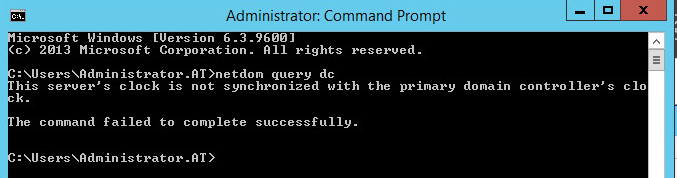
When performing a netdom query dc on the new domain controller it complained time is out.


Fixing up the time to ensure it is within 5 minutes of the PDC Emulator (as required for Kerberos) resolved the problem.

Easy one but had me stumped for a little while (I didn't glance at my system tray to check the clock until a while).

Thursday, January 2, 2014

Configure failover failed. Error: 20114: The DHCP Failover relationship already exists.

This post relates to the new Windows Server 2012 Failover technology.  I was diagnosing DHCP Issues at a customer when I was required to remove my DHCP scopes from failover configuration then re-add them.  After attempting to re-add the scopes I received the following error.

Configure failover failed.  Error: 20114: The DHCP Failover relationship already exists.


Despite removing the scopes from DHCP failover the partner server still believes the DHCP failover relationship was in existence.

After messing around a little longer I found out a work around.  The error was occurring because I was using the same Relationship Name as before.  Changing the Relationship Name to something else resolves the issue.


Exchange 2003 to Exchange 2010 Mailbox Move Failing

When attempting to perform mailbox moves between Exchange 2003 to Exchange 2010 the following error was experienced.

Mailbox Name
Failed


Error:
Mailbox database 'b70397e5-c347-4f7b-8a15-575172b89820' is offline.


MapiExceptionLogonFailed: Unable to make connection to the server. (hr=0x80040111, ec=1010)
Diagnostic context:

    ......
    Lid: 13720   dwParam: 0x6D9      Msg: EEInfo: Flags: 0
    Lid: 11672   dwParam: 0x6D9      Msg: EEInfo: NumberOfParameters: 4
    Lid: 8856    dwParam: 0x6D9      Msg: EEInfo: prm[0]: Unicode string: ncacn_ip_tcp
    Lid: 8856    dwParam: 0x6D9      Msg: EEInfo: prm[1]: Unicode string: cpaexch01.cpawa.com.au
    Lid: 12952   dwParam: 0x6D9      Msg: EEInfo: prm[2]: Long val: -545057711
    Lid: 12952   dwParam: 0x6D9      Msg: EEInfo: prm[3]: Long val: 382312662
    Lid: 45169   StoreEc: 0x824    
    Lid: 44273 
    Lid: 59431   EMSMDB.EcDoConnectEx called [length=99]
    Lid: 34855   EMSMDB.EcDoConnectEx returned [ec=0x3F2][length=56][latency=0]
    Lid: 56945 
    Lid: 59431   EMSMDB.EcDoConnectEx called [length=99]
    Lid: 34855   EMSMDB.EcDoConnectEx returned [ec=0x3F2][length=56][latency=15]
    Lid: 59505   StoreEc: 0x3F2    
    Lid: 52465   StoreEc: 0x3F2    
    Lid: 60065 
    Lid: 33777   StoreEc: 0x3F2    
    Lid: 59805 
    Lid: 52209   StoreEc: 0x3F2    
    Lid: 56583 
    Lid: 52487   StoreEc: 0x3F2    
    Lid: 19778 
    Lid: 27970   StoreEc: 0x3F2    
    Lid: 17730 
    Lid: 25922   StoreEc: 0x3F2    

Click here for help... http://technet.microsoft.com/en-US/library/ms.exch.err.default(EXCHG.141).aspx?v=14.3.169.1&t=exchgf1&e=ms.exch.err.ExC2B9A8
Exchange Management Shell command attempted:
domain.local/Townsend/Users/Mailbox Name | New-MoveRequest -TargetDatabase 'MailboxDatabase2'

Elapsed Time: 00:00:01


After some investigation it turned out that the Exchange 2010 server did not have permissions to the Exchange 2003 mailbox databases.  To fix the issue I simply went to the properties of the Exchange 2003 mailbox database in System Manager, Added the Exchange 2010 computer object and granted it full control permissions.


After making this change mailbox moves worked successfully.