Showing posts with label Applications. Show all posts

Tuesday, February 25, 2014

Stellar Phoenix EDB to PST Converter Review

Stellar Phoenix EDB to PST Converter is an application which allows administrators to export mailboxes from an online or offline Exchange EDB database to PST format.  It is a simple and user friendly application to use and navigate which is handy for even the most inexperienced administrators.

When launching the application, Administrators are presented with two options:
  • Convert Online EDB to PST
  • Convert Offline EDB to PST

Convert Online EDB to PST Option

The convert online EDB to PST option allows administrators to connect to a live Exchange environment and export mailboxes to PST while users are working.  This option requires you to specify the connection details of your Exchange server along with credentials for a user account which has administrative access to export mailboxes.  To perform the export the credentials specified must also have access to all user mailboxes across the Exchange organisation.

The Online EDB to PST conversion option is a nice to have option due to the user friendly nature of the application however it is not something I would recommend to companies as a reason to purchase the Stellar Phoenix EDB to PST Converter application.  Microsoft has already shipped tools with all versions of Exchange to mass export user mailboxes to PST from online mailboxes.  For Example, Exchange 5.5, 2000 and 2003 has a tool named ExMerge which has the ability to export all mailboxes to separate PST files for all users in an Exchange organisation.  Exchange 2007, 2010 and 2013 has the ability to export all mailboxes to PST files using PowerShell.  Exchange Management Shell has a Export-Mailbox or New-MailboxExportRequest depending on what version of Exchange your currently running.

This being said, these tools provided by Microsoft only allow you to export entire mailboxes to PSTStellar Phoenix EDB to PST Converter allows you to select individual folders or messages from an Exchange Mailbox and export only a subset of data which is relevant to PST.  This granular selection provided by the application provides administrators with more flexibility when managing their online exports.

Convert Offline EDB to PST Option

Convert Offline EDB to PST option allows administrators to extract PST files from an EDB file without the presence of an Exchange server.  This is very handy for companies who want to restore select emails from an offline EDB backup file without restoring the entire EDB file back into an Exchange environment such as a Recovery Storage Group (RSG).

When you choose to select Offline EDB to PST conversion, the tool will ask you to specify a path to the EDB file along with specifying what version of Exchange the EDB file was created in.


After selecting the EDB file the application will break down all mailboxes available for export.  As an administrator you can select which mailboxes you wish to export to PST including granular selection of which folders/items you wish to export from each mailbox.


After the selection process is completed, click the save button which is represented by an old fashion floppy disk.  Specify a folder which you would like to export all PST files to.


The tool will then go through and begin the process of exporting all mailboxes selected to individual PST files.  The PST files will be created in the format of "mailboxname.pst"


Exchange 2013 Support

At the time of writing this review,  Stellar Phoenix EDB to PST Converter does not currently support Microsoft Exchange Server 2013 or 2013 SP1 mailbox database files.  Stellar Phoenix said this is currently being worked on and support for this will be added to the product in the next couple of months.

Licensing and Pricing

Stellar Phoenix EDB to PST Converter has two licensing options, "Administrator License" and "Technician License".

The Administrator License allows for the product to be installed on unlimited workstations within a single site (or physical office).

The Technician License allows for the product to be installed on unlimited workstations across all physical offices throughout an organisation.

It is important to note that in both licenses, only a single conversion can be performed simultaneously.

The Administrator License is priced at $399 USD while the Technician License  is priced at $499 USD.  These prices are correct as of this writing but are subject to change.  For the latest pricing on Stellar Phoenix EDB to PST Converter, please refer to the following web page:

http://www.stellarinfo.com/email-repair/edb-pst-converter/buy-now.php

Monday, December 16, 2013

Websense Appliance - Internal Error - Server Connection Terminated

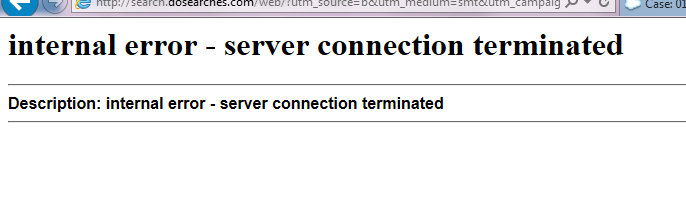
When setting up a Websense V5000 G2 appliance 7.8.1, in Gateway Manager I enabled integrated Windows Authentication, joined the appliance to the domain then enabled SOCKS.  After making these changes, when navigating to websites from clients the following error was experienced:

internal error - server connection terminated

The Internal Error generally occurs when SOCKS has been enabled but not configured.  After disabling SOCKS in the Websense Gateway Manager interface, the issue was resolved.


Sunday, December 1, 2013

Secure Email, The Next Generation Today

The following post is a guest post by Andy Campbell.

Secure Email, The Next Generation Today

Out With the Old In With the New
If you exchange data regularly with colleagues, business partners and clients, which probably describes all of us, then no doubt you will have at some point considered the risks to that data being leaked or compromised in some way. This will have led you to investigate encryption as a tool to safeguard both you and your recipient’s data. Many of you might have elected not to proceed with an encryption solution because of the burden this would place on normal business practices. Well if that’s you, it’s time you looked again. This year’s winner of the UK IT Industries Cloud Provider of the Year, Egress Software Technologies, have an email encryption product called Switch that just might have the answer.

Sending Secure Emails
This can be done via either a desktop app, smartphone/tablet app or web interface, or if you are a Microsoft Outlook or Lotus Notes user from within your email client. Plus you don’t need to worry whether your recipient is a current user of Switch or has even heard of it. We are running this demonstration on a MacBook Pro using OS X version 10.7.5.

 Fig. 1 Welcome Screen

From the “Welcome” screen (Fig. 1) you can choose to create a package, create a secure message or view the packages you have created earlier. Creating a package is the term used here that describes how you can wrap encryption around any form of data to be exchanged by USB stick, CD ROM, FTP file transfer or DVD.

However since we are talking about secure email let’s look more closely at that aspect of this product.

On clicking the “Create Message” icon your browser will be opened at Egress’s web mail page where you can compose your email and add attachments as required (Fig. 2). If you are using a Windows PC it will integrate with either Microsoft Outlook or Lotus Notes if available.

 Fig. 2 Secure Email

Clicking “Send Secure” will automatically encrypt and send your email to your recipient, you will get a confirmation screen (Fig. 3). It couldn’t be easier!

 Fig. 3 Confirmation Screen

Your recipient will receive an email as shown in Fig. 4.

 Fig. 4 Secure Email Arrives

It is no problem if your recipient has never used Switch before, they will most likely click on the “read this secure email” link, which will take them to the account sign in screen (Fig. 5) where they can create a free Switch account for themselves.

Fig. 5 Sign In Screen

Once you have created an account and signed in you will have automatic access to the decrypted email and attachment (Fig. 6)

Fig. 6 Decrypted Email

From here you can obviously read the email and any attachment, but and this is where it gets quite cleaver, both the email and attachment are “water-marked” with the recipients email address. This extra layer of protection is designed to encourage users not to share the contents of your email with others without your permission. The copying of and attachment has been made more difficult by making the contents appear opaque when the window in which they appear is no longer the focus (Fig. 7).

 Fig. 7 Opaque Content

Should the user try to forward this email securely to someone else they will not be able to open it even if they have a Switch account in their name unless you have added them to the list of approved recipients of this email. Does that make sense? In other words you keep control of where your data can be viewed. This makes Switch so much more than just a secure email product. You can even time when access is to be granted.

How Secure Is Switch?
Switch offers pretty strong encryption, using AES at 256 bits and coming with a stamp of approval from CESG and FIPS, you can be assured that the algorithm has been properly implemented. And since each communication is encrypted with fresh keys any possible future breach would effect only the single communication not previous ones or future ones. Hopefully I told you enough for you to go and take a look for yourselves.


About Andy Campbell
Andy Campbell has over 40 years experience in the computer business, 20 of those years were spent at Reflex Magnetics Ltd a UK developer of security software. As managing director he was instrumental in forging a close relationship with the MoD and CESG, Reflex's Disknet and Data Vault products being used extensively by both the UK's armed forces and NATO. More recently he has been involved as a director and investor in Reflect Digital a web marketing agency.

Thursday, October 31, 2013

Exporting Drivers from Windows

I stumbled across a great application today called DriverMax - a free application which lets you export drivers from Windows based operating systems.  This tool is handy when you are having difficulty tracking down an unknown driver but have it readably available already installed on another workstation.  With this tool you can simply export the driver from one computer to another.

The latest version of DriverMax as of this writing is version 7.21 which can be downloaded from the following URL:

http://small.drivermax.com/soft/dmx/drivermax.exe

Once installed you will be presented with the following splash screen.  Simply click "Driver backup and restore"


Next select "Backup drivers".


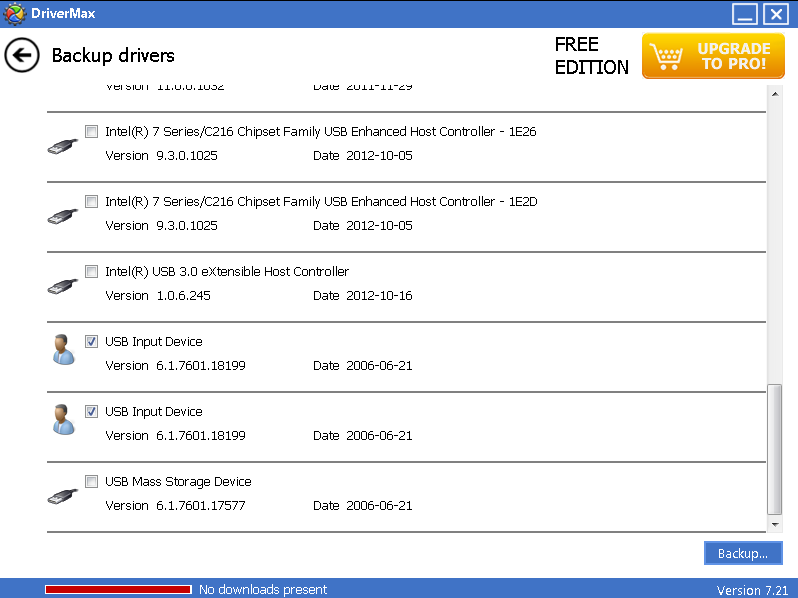
Select the drives you wish to export from the operating system such as display, network or audio drivers.  In my case I have a HP USB mouse/keyboard which is not being recognised by Windows 7 x64 (weird) so I want to move the drivers from a PC which I know have the correct drivers for this device.

I selected "USB Input Device" (both the Mouse and Keyboard both use the same driver).


Next under the backup button select "Backup selected drivers to a specified folder".  Select the folder and then select backup.


Under the folder specified the drivers will be backed up to the respective location as shown in the following screenshot with the driver ini file and system files.


Monday, May 27, 2013

Schemus - User synchronization failed. Update abandoned

One of my customers who utilises Symantec Cloud email and web filtering was experiencing an issue with the Schemus synchronisation tool when synchronising Mail Address, Groups and Users to Symantec Cloud.

The error they were experiencing was:

User synchronization failed. Update abandoned


After speaking to Symantec this issue can occur sometimes with Schemus due to corruption in one of the following files:
  • users.sus
  • syncdata.sus
  • groups.sus
These files are located in the following directory:

C:\ProgramData\Schemus\configurations\SYNCJOBNAME

In our case it was:

C:\ProgramData\Schemus\configurations\SymantecADSync

To fix this problem, first close Schemus.

Next rename or move these files to another location.

Lastly reopen Schemus and attempt another sync, these files will regenerate.  After making this change Synchronisation is now working correctly.


Sunday, May 26, 2013

CloudLink - The current account doesn't have sufficient privileges

In the process of setting up Symantec Enterprise Vault Cloud for Microsoft Exchange, I had an issue where the ArchiveTools CloudLink tool would not accept my service account I created called cloudlink.  It is complaining the account does not have Logon As Service privileges on my CloudLink server however I know the account does as I already granted this User Rights Assignment manually.

The error we were getting was:

CloudLink - The current account doesn't have sufficient privileges to give 'Logon As Service' privilege to the selected account. An administrator will need to manually allow this account to run as service.  Failing to do so will prevent the service from running.


The problem?  Good old User Account Control or UAC for short.

After trying again by running ArchiveTools CloudLink  as "Run as Administrator" the problem was resolved.


Tuesday, March 5, 2013

NSClient++ Clients Report Arguments not Enabled

I am currently in the process of deploying the open source Nagios monitoring platform for a customer to provide them the ability to monitor their Windows machines, network infrastructure and virtual environment.

There are a couple of Nagios agents for Windows out there such as NSClient++NC_Net and WINRPE which all do a great job of extracting Event Logs, Disk Utilization, Process Status, Service Status, Schedule Tasks, Windows Update Status, Anti Virus protection and much more.

In my deployment I chose to implement the NSClient++ on my Windows Server infrastructure.  The copy of NSClient++ I'm using is NSCP-0.4.1.90-x64.msi which I downloaded from the downloads page:


When installing the application I chose to enable both Check_NT and Check_NRPE.

Check_NT is the legacy method for monitoring Windows hosts which only provides basic reporting functionality.

Check_NRPE is the more advanced reporting functionality which provides endless functionality including the ability to execute bat, vbs and powershell scripts on hosts monitored.

After NSClient++ was installed on my servers I tested it using the following command from my Nagios server:

[root@Nagios objects]# /usr/lib/nagios/plugins/check_nrpe -H 10.1.1.40
I (0,4,1,90 2013-02-04) seem to be doing fine...


Great all is well.

Now I went to shoot a test command to check my drive size on C:\ however when running this command I got the following error:

Exception processing request: Request contained arguments (not currently allowed, check the allow arguments option).


To Resolve this problem I needed to allow arguments in the nsclient.ini file on my Windows workstation by adding the following code:

[/settings/NRPE/server]
allow arguments=1

I added this configuration just below the allowed_hosts section of the default nsclient.ini file as shown in the following screenshot:


After making this change and restarting the NSClient++ Service all was well, I was able to successfully run Check_NRPE commands against my Nagios server.


Hope this blog post helps someone.

Tuesday, January 1, 2013

Schemus Mail Configuration hanging on Loading

I was configuring the Schemus Mail Configuration tool to synchronise recipient information from an Active Directory forest to Symantec Cloud but ran into an issue with the Synchronisation tool.

I entered the configuration for an Active Directory domain controller into the tool along with a username and password as follows:


When clicking next the wizard would get stuck on Loading and not progress any further.


After clicking cancel and closing the wizard then selecting View --> Logs I noticed multiple entries of "Cannot access the LDAP server. Malformed reply from SOCKS server"

 
Can't access the LDAP server. Malformed reply from SOCKS server
com.metanate.schemus.data.source.SourceException: Malformed reply from SOCKS server
 at com.metanate.schemus.data.source.LdapSource.setContext(Unknown Source)
 at com.metanate.schemus.data.source.LdapSource.ensureOpen(Unknown Source)
 at com.metanate.schemus.data.source.LdapSource.getSearchBases(Unknown Source)
 at com.metanate.schemus.config.gui.wizard.swing.source.SearchSettingsPanel$2.construct(Unknown Source)
 at com.metanate.schemus.config.gui.wizard.swing.SwingWorker$2.run(Unknown Source)
 at java.lang.Thread.run(Unknown Source)
Caused by: javax.naming.CommunicationException: 10.100.8.91:389 [Root exception is java.net.SocketException: Malformed reply from SOCKS server]
 at com.sun.jndi.ldap.Connection.(Unknown Source)
 at com.sun.jndi.ldap.LdapClient.(Unknown Source)
 at com.sun.jndi.ldap.LdapClient.getInstance(Unknown Source)
 at com.sun.jndi.ldap.LdapCtx.connect(Unknown Source)
 at com.sun.jndi.ldap.LdapCtx.(Unknown Source)
 at com.sun.jndi.ldap.LdapCtxFactory.getUsingURL(Unknown Source)
 at com.sun.jndi.ldap.LdapCtxFactory.getUsingURLs(Unknown Source)
 at com.sun.jndi.ldap.LdapCtxFactory.getLdapCtxInstance(Unknown Source)
 at com.sun.jndi.ldap.LdapCtxFactory.getInitialContext(Unknown Source)
 at javax.naming.spi.NamingManager.getInitialContext(Unknown Source)
 at javax.naming.InitialContext.getDefaultInitCtx(Unknown Source)
 at javax.naming.InitialContext.init(Unknown Source)
 at javax.naming.ldap.InitialLdapContext.(Unknown Source)
 ... 6 more
Caused by: java.net.SocketException: Malformed reply from SOCKS server
 at java.net.SocksSocketImpl.readSocksReply(Unknown Source)
 at java.net.SocksSocketImpl.connect(Unknown Source)
 at java.net.Socket.connect(Unknown Source)
 at java.net.Socket.connect(Unknown Source)
 at java.net.Socket.(Unknown Source)
 at java.net.Socket.(Unknown Source)
 at com.sun.jndi.ldap.Connection.createSocket(Unknown Source)
 
SOCKS is a proxy technology.  After checking Internet Options it turns out that a proxy server was configured on the server.


Removing the proxy server from Internet Options resolved the problem.

Sunday, October 7, 2012

A Quick Look at WinSAT

WinSAT.exe is a fantastic free tool made by Microsoft for checking performance utilisation of a server through command line.  WinSAT allows you to quickly look at the performance of your disk, cpu or memory plus much more.

For example to look at your disk performance simply type from command prompt:

"winsat disk"

The "winsat disk" command provided the following output:

 
You can also look at memory performance by typing "winsat mem" or CPU performance by typing "winsat cpu".
 
winsat comes by default with all Windows 7 and Windows Vista operating systems, however it does not come on Windows Server 2008 or Windows Server 2008 R2.  You can however run this application on Windows Servers which can be done by simply copying the Winsat files to the System32 directory on a WIndows Server from a client.

The Winsat program is made up of the following two files:
  • WinSAT.exe
  • WinSATAPI.dll
 
Simply copy these files from a Windows Vista or Windows 7 client to the server's system 32 directory.  Note if it is a x64 server, you need to copy the files from an x64 version of Windows 7 or Windows Vista.  If the server is 32bit, you need to copy these files from a 32bit version of Windows 7 or Windows Vista.

What about testing network performance clint?

If you need to test network performance, I recommend you looking at a tool called IPERF.  Please see my following article:

http://clintboessen.blogspot.com.au/2010/01/how-to-test-bandiwidth-between-two.html

Note: If you are having problems running winsat it is most likely due to User Account Control.  Make sure you open a command prompt as administrator to bypass UAC by right clicking on cmd.exe and selecting "Run As Administrator".

Sunday, August 12, 2012

An insight into OWA Desktop by Messageware

In this article we will be looking at a product called OWA Desktop by Messageware.

What is OWA Desktop?

OWA Desktop provides users with an email client without having to install Microsoft Outlook.  It enhances the functionality of Outlook Web App 2010 or Outlook Web Access 2007 resolving many of the limitations which prevent OWA being used as a full blown email client.

OWA by itself has a number of problems when being used as an email client.  It runs in an internet browser and requires constant user interaction to ensure it does not sign the users session out.  Another problem with OWA is there is nothing stopping a user from accidentally closing the internet browser running their OWA session.

OWA Desktop is a light weight application written in Microsoft .Net Framework 3.5 SP1 which runs in the background on a users workstation providing them with a constant connection to Microsoft OWA.  It provides alerts, notifications, email, calendar and tasks access on the fly as you would get out of Microsoft Outlook all from an easy to use OWA Interface.

OWA Desktop runs on the following operating systems:
  • Windows XP
  • Windows Vista
  • Windows 7
  • Windows 8
  • Windows Server 2003
  • Windows Server 2008
  • Windows Server 2008 R2
  • Windows Server 2012
OWA Desktop currently supports the following version of Exchange:

  • Exchange 2007
  • Exchange 2010
  • Office 365

  • OWA Desktop utilises a combination of Exchange Web Services and Outlook Web App to interact with the Exchange 2007/2010 servers.  OWA Desktop will support Exchange 2013, however this is still in development.

    When would you want to deploy OWA Desktop?

    Not all users require programs such as word processors and spreadsheet applications to perform their daily job.  Some users may only require an email client and it doesnt make sense to deploy the entire Microsoft Office suite.  Microsoft Office is a serious investment which needs to be factored into any IT budget.  There is a gap which needs to be filled to provide companies a cheap alternative for a desktop email client.  Messageware have filled this much needed gap with OWA Desktop providing companies the ability to deploy an email client to users at a cost of around $1.50 EURO a user per month.  Pricing is subject to change and depends on the number of users licenses purchased but regardless it is a significant cost saving over the purchase of Microsoft Oulook.  To get a quote for your organisation contact SalesTeam@messageware.com.
    Running OWA Desktop for end users provides additional cost savings other then just licensing.  It also provides a reduction in IT operational expenses.  Deploying Microsoft Office to users means that Microsoft Office needs to be maintained.  Administrators need to deploy critical security updates and patches to Microsoft Office to ensure security vulnerabilities in the application are not exposed.  Products such as Symantec Altiris, Microsoft System Center Configuration Manager (SCCM) or Windows Software Update Services (WSUS) must be put in place to maintain various industry security compliance's such as CIS or NIST to patch security vulnerabilities in Office when discovered.  When running OWA Desktop, all content displayed within OWA Desktop is generated from the Exchange server through OWA and Exchange EWS.  Administrators no longer need to worry about patching and maintaining Microsoft Office.

    OWA Desktop In Action

    OWA Desktop is very easy to configure, it supports autodiscover and only requires a few details to get started.


    Once setup OWA Desktop sits in your system tray.  Any incoming emails, meeting requests or appointments popup in the bottom left the users screen as it would in Microsoft Outlook.  It remains logged in and will automatically reconnect should disruption to OWA services occur.  OWA Desktop can also be configured to automatically load with Windows to ensure users never miss an email.


    When right clicking on OWA Desktop the application menu appears.  Users can open their inbox, calendar, tasks or compose a new email message at the click of a button.  Compared to the number of clicks required to open a new browser, login to OWA, and click the new compose button it makes utilising OWA as a desktop email client simple, easy and hassle free.


    The following screenshot shows the Inbox screen of OWA Desktop.


    The following screen shows composing a new email via OWA Desktop.


    It is OWA as you know it, simple, fast, easy to use in a desktop environment!

    Messageware Active Send

    Another component of OWA Desktop which is installed seperately using a seperate MSI file is Messageware Active Send.  This incorporates the send to mail functionality of the Windows operating system with OWA associating OWA as an application.  When a user right clicks a file, navigates to Send To and selects Mail recipient, Messageware Active Send will automatically upload the file into Exchange 2010 OWA and open the file as an attachment to a new email message in OWA - very cool.  This also works with any "mailto:" hyperlinks which may appear within documents, email messages or web pages.


    Deployment

    Both OWA Desktop and Active Send are MSI files which can be deployed to workstations on mass through group policy software deployment or another application such as SCCM or Symanted Altiris.

    Conclusion

    OWA Desktop is a great low cost application for users who do not require the full Microsoft Office product suite.

    Sunday, October 9, 2011

    [Fixed] Can't Insert Page Number Microsoft Word

    A customer of mine experienced a weird issue where they were unable to insert a page number in Microsoft Word 2007. When they went to insert page number in Word they received "Save Selection to Page Number Gallery".


    After using system internals process monitor I discovered that Word references a file called "Building Blocks.dotx" to create the page number.

    On Windows XP/Server 2003 this file is located under:

    C:\Documents and Settings\username\Application Data\Microsoft\Document Building Blocks\1033

    In Vista/7/2008 this file is located under:

    C:\Users\username\AppData\Roaming\Microsoft\Document Building Blocks\1033

    I copied Building Blocks.dotx from another computer with Word 2007 installed replacing the file in my user profile. This resolved my issue.

    Note: I believe that this resolution will also work for Word 2010.

    Thursday, October 6, 2011

    Determine if binary is 32bit or 64bit?

    Now that there are 16bit, 32bit and even 64bit binaries around for different processor and operating system platform types we need an easy method for determining which machine architecture a binary has been compiled for.

    I found a neat little tool called MiTeC EXE Explorer which does exactly that and more. This tool was developed by a guy named Michal Mutl. Michal has developed all sorts of system admin tools... please visit his website at http://www.mitec.cz/.

    MiTeC EXE Explorer is such a great little tool as it does not require installing, its a portable executable which can be executed on any server or workstation within your organisation. It is also completely free.

    This is a third party non Microsoft tool however you can feel save executing it on your enterprise environment knowing it will not perform unknown miscellaneous activities as the tool received the Softpedia 100% clean award.

    To download MiTeC EXE Explorer please visit http://www.mitec.cz/exe.html.

    Here is a screenshot of the tool in action:

    Monday, August 8, 2011

    Word Crashes Dell XPS 15z Laptop

    I just got a new Dell XPS 15z laptop. Microsoft word however continiously crashes generating the following error in event viewer:

    Log Name: Application
    Source: Application Error
    Date: 9/08/2011 9:42:22 AM
    Event ID: 1000
    Task Category: (100)
    Level: Error
    Keywords: Classic
    User: N/A
    Computer: Clint-PC
    Description:
    Faulting application name: WINWORD.EXE, version: 14.0.4762.1000, time stamp: 0x4bae25cd
    Faulting module name: btmofficea.dll, version: 1.0.0.49, time stamp: 0x4d382a1a
    Exception code: 0xc0000005
    Fault offset: 0x00000000000065ff
    Faulting process id: 0xd80
    Faulting application start time: 0x01cc56359222c86d
    Faulting application path: C:\Program Files\Microsoft Office\Office14\WINWORD.EXE
    Faulting module path: C:\Program Files (x86)\Intel\Bluetooth\btmofficea.dll
    Report Id: d2f29c37-c228-11e0-8b74-feb16a7ed552


    This was caused by the bluetooth module that comes with the laptop. In word I went to file --> options. Under Add-Ins we see the bluetooth driver.


    Under COM Add-ins click Go. Untick the send to bluetooth checkbox.

    Monday, July 18, 2011

    Microsoft Sync Toy - Perfect for Home Users

    Today I stumbled across a fantastic little application called Sync Toy. Perfect for home users who want to backup data to a external drive on a regular basis, between computers or to mapped drive pointing to a cloud provider such as Windows Live.

    SyncToy 2.1 is a free application that synchronizes files and folders between locations. Typical uses include sharing files, such as photos, with other computers and creating backup copies of files and folders.

    It is so easy to use, I think my mum could do it.

    Here I have setup synchronization of My Documents to my Microsoft Windows Live SkyDrive cloud account to ensure my documents are backed up at all times. This is a free service. This also allows me to sync the files down to any new computer I work on.

    Z:\ is mapped to windows live cloud account.

    Please click to enlarge:


    As of this writing the latest version of SyncToy is 2.1. The x86 and x64 version is available from here:

    http://www.microsoft.com/download/en/details.aspx?id=15155

    Note: If you wish to setup a drive letter mapped to your Windows Live SkyDrive service please see the following link:

    http://www.addictivetips.com/microsoft-office/map-local-drive-letter-to-live-skydrive-using-office-2010/

    Tuesday, June 28, 2011

    Microsoft Office 2010 SP1 Released

    Microsoft Office 2010 Service Pack 1 has now been officially released by Microsoft as of June 28th 2011.

    The official KB for this release is 2460049

    Download the 32bit version from here:

    http://www.microsoft.com/downloads/details.aspx?FamilyId=9D2E1282-8B69-418B-AFA0-9F61239EC8BE

    Download the 64bit version from here:

    http://www.microsoft.com/downloads/details.aspx?FamilyId=E9F3C2D0-C321-4910-A4CE-B2F294B42D65

    Monday, March 7, 2011

    Internet Explorer 9

    As I'm a Microsoft Engineer I always put Microsoft products first. I use Internet Explorer 8.0 on my desktop PC and high performance laptops.

    Being a IT geek I have a number of computers I use for different purposes. I purchased a Asus Eee PC netbook for when I'm on the go and want something light and portable (with a USB port) which rules out the iPad!

    I installed Windows 7 Ultimate on the Eee PC netbook and set the windows theme to "Windows Classic" to provide best optimized performance.

    My Eee PC only has a Intel Atom N450 @ 1.44GHz processor that delivers a performance score of 2.3 (pretty poor).


    Internet Explorer 8.0 ran like a dog! Performing simple tasks such as utilizing Exchange 2010 Outlook Web App and Facebook continuously hung and become unresponsive. As a result I was forced to install Google Chrome - the performance difference between IE 8.0 and Chrome was amazing!

    After just getting back from the MVP summit in Seattle I was speaking with some of the Internet Explorer 9 MVP's. They mentioned that Internet Explorer 9 was completely redesigned and now provides fantastic performance - even faster then Chrome! This I had to see for myself as I found it very hard to believe them (being IE junkies).

    I just installed IE 9.0 RC on my Eee PC and yes it is amazingly fast (It is performing faster then Chrome!) If you have tried IE 9.0 Beta and were unimpressed I encourage you to try RC. Between the Internet Explorer 9 Beta and Internet Explorer 9 RC releases, over 2,000 changes have been made to improve browser performance for real customer scenarios.

    Internet Explorer 9 RC starts faster, loads webpages faster, and allows you to interact with web pages faster than ever before. One thing I liked is it actually timed how long it took to load each of my browser Add-on's. I was then able to disable Add-on's such as Microsoft Corporation "Search Helper" which took 0.22 seconds to load. It prompted me to do this - making this very easy for end users!

    The Site loading indicator is making sense now! Was very disappointed with previous versions.

    However Microsoft failed to listen to the community on some key features. Internet Explorer 9 RC is still missing a Spell Checker - ahhg. This means you need to download a third party add-on to perform this functionality. A download manager would also be an awesome addition.

    Microsoft have lead the way in terms of hardware acceleration for web browsing. Check out this comparison video comparing a web app which takes advantage of graphics acceleration (Chrome vs IE9).

    http://www.youtube.com/watch?v=jhi70EJlw7w

    IE9 is also compliant with all HTML5 standards.

    I have now uninstalled Chrome from my Asus EeePC and I'm back on the Microsoft ship for web browsing on low performing devices.

    The following URL's are comparison articles comparing the current web browsers on the market to Internet Explorer 9.

    http://www.nirmaltv.com/2010/09/16/internet-explorer-9-vs-google-chrome-6-vs-firefox-4b/

    http://news.softpedia.com/news/IE9-RC-vs-Chrome-10-9-vs-Opera-11-vs-Firefox-11-Performance-Comparison-183973.shtml

    For benchmark tests refer to this blog post:
    http://haxterslab.blogspot.com/2011/02/internet-explorer-9-rc-review.html

    Feature Comparison:
    http://windows.microsoft.com/en-US/internet-explorer/products/ie-9/compare-browsers

    Monday, February 21, 2011

    Microsoft Word 2010 Shading Fill Bug

    I found today what appears to be a bug with the Shading tool in Microsoft Word 2010 when dealing with tables. The build of Microsoft Word I'm using is 14.0.5123.5000.

    I'm running Windows 7 SP1 Enterprise x64. My installation of Office 2010 is 32bit.

    My word document I'm working on is in docx format.

    The problem comes around selecting an existing colour from a table.

    Here i have my cursor in a light blue table:


    To get the RGB color code I go to "Shading" --> "More Colors".


    However its coming up with my current color as black (see bottom right). It comes up as black not light blue!


    If I click OK it will make my cell black.


    Now I undo my change (CTRL + Z).


    Now I go back to "Shading" --> "More Colors"


    My light blue color is now coming up correctly.


    If I close my word document and re-open it, the problem does not re-occur.

    If I log off my session and log back in, the problem re-occurs.

    I reported this bug to Microsoft on the following forum thread:
    http://social.technet.microsoft.com/Forums/en-US/word/thread/2f95341a-e0af-4a7b-b6dd-8d4fca54d939