Showing posts with label SQL. Show all posts

Sunday, June 16, 2019

Unable to remove RDS Session Host

A customer had a failed RDS Session Host which needed to be removed from a cluster.  We were not able to login to the failed host as it was blue screening and needed to be forcefully removed.

Even using PowerShell with the -force switch we were unable to remove the server getting the following error:

"Unable to cleanup the RD Session Host server"


To remove the server we needed to install SQL Management Studio and connect to the RD Broker Windows Internal Database (WID) which is a lightweight install of MS SQL.

SQL Management Studio was downloaded and installed from the following link:


https://go.microsoft.com/fwlink/?linkid=2094583

Make sure you run SQL Management Studio as "Administrator" and you should be able to connect to the following instance as a Domain Admin:

\\.\pipe\MICROSOFT##WID\tsql\query


The server needs to be removed from two tables:
  • rds.Server
  • rds.RoleRdsh
Make note of what ID number the server you want to remove is... mine is ID 4 as shown in the screenshots below.


Next I used the following command to remove the failed server from the RD Broker database:


use RDCms;
delete from rds.RoleRdsh where ServerID = '4';
use RDCms;
delete from rds.Server where Id = '4';


I strongly recommend a full backup of the SQL database be taken before making any changes.

Hope this post was helpful.

Tuesday, September 15, 2015

Regaining Access to an SQL Instance

After a previous employee left an organisation, no one had access to an SQL Instance and the SA Password was unknown.  In this article I will show you how to regain access to an SQL Instance.

This process was performed in SQL Server 2012 Enterprise Edition by booting the SQL server into Single User Mode.

First stop the SQL service for which we need to recover the password.

Then start the service by entering a Start parameter of "-m" in the services window in Control Panel.


Next connect to the instance with SQLCMD.exe -S "SERVERNAME\Instance".

To grant sysadmin to a user or entire group such as Domain Admins, run the following command:

EXEC sp_addsrvrolemember 'DOMAIN\Domain Admins', 'sysadmin'; 
GO

Next run "quit" to close SQLCMD.


After this, remove the -m from the SQL Instance and start the instance normally.  Now anyone in the Domain Admins group will have sysadmin rights to the instance.  Login with a Domain Admin account and reset the SA password (provided your Instance is setup for Mixed authentication).


Enter the new password and click OK.


Sunday, January 12, 2014

ODBC SQL Server Driver - Cannot Generate SSPI context

On the weekend I responded to an emergency callout regarding a custom Microsoft Access front end application not being able to talk to the backend SQL database.  The error which was being received was as follows.

Connection failed:
SQL State:'S1000'
SQL Server Error 0
[Microsoft][ODBC SQL Server Driver]Cannot generate SSPI context


After investigation this was caused by an incorrect time set on the SQL server.  The Kerberos time tolerance by default is set 5 minutes however the SQL server clock had drifted 8 minutes out.  The customer did not have their Active Directory time hierarchy configured correctly.

Sunday, October 13, 2013

Limit the Amount of Memory used by an SQL Instance

By Default, an instance of SQL will attempt to use every free MB of memory it can get its hands on.  This is by design, the more database records available in memory, the lower the disk I/O activity.  However there are times when you may want to limit the amount of memory utilised by an SQL Instance.  For example you may have an SQL Clustered environment running AlwaysOn Availability which is responsible for hosting multiple SQL Instances.  In this case you may what to limit the memory utilisation of each instance.  Another scenarios may exist where you are monitoring your servers available memory using a monitoring product such as SCOM and configure the monitoring product to trigger an alert when 90% memory utilisation on a server is hit.  As SQL always utilises all available memory, this will cause many false alerts.

How do we do this?

First you need to connect to the SQL Instance you wish to configure using SQL Management Console, in my example it is SQL 2012.

Next right click the instance (in my example my SQL Instance is called SCCM) and click Properties.


On the left of the properties screen click Memory.  There will be a value by default under Maximum server memory (in MB) set to 2147483647 is equivalent to 2048TB of memory (no server has this!).


Set it to something more practical like 1024MB.  Please note if you  have a busy SQL application you will need to assign an appropriate amount of memory for the given application.


How to Change SQL Instance Collation

In this post I am going to show you how to change SQL 2012 database collation SQL_Latin1_General_CP1_CI_AS, the requirement for System Centre Configuration Manager (SCCM) 2012.  Changing database collation means all data in the database will be lost - make sure you know what your doing.

I needed to change the database collation for my SCCM instance in relation to an SCCM installation error:

Configuration Manager requires that you configure your SQL Server instance and Configuration Manager site database (if already present) to use the SQL_Latin1_General_CP1_CI_AS collation, unless you are using a Chinese operating system and require GB18030 support.

To change the database collation simply run the setup.exe from the SQL Installation media again but in quite mode.  The command you need to run is:

setup /q /action=rebuilddatabase /instancename=sccm /sapwd=P@ssw0rd /SQLCollation=SQL_Latin1_General_CP1_CI_AS /SQLSYSADMINACCOUNTS=domain\administrator


/q – perform silent installation

/Action – [RebuildDatabase ] Rebuilding the system databases to change the collation name

/INSTANCENAME – Name of the instance the collation has to change
- If Default Instance then “MSSQLSERVER”
- If Named Instance “Named Instance Name”

/SAPWD – Provide new password for SA login
 - Enable SA Account if it Disabled setup with Strong Password.

/SQLCollation – Provide the new collation name of SQL Server

/SQLSYSADMINACCOUNTS – Provide account name which has admin rights in sql server.

SQL 2012 Not Listening on TCP1433

Previous releases of Microsoft SQL such as 2008 R2 use to listen on TCP1433 for incoming SQL traffic.  Now in SQL Server 2012, TCP1433 is no longer utilised.  This can be shown using the netstat command as shown in the screenshot below.

SQL Server 2012 now uses dynamic ports for each SQL instance which is subject to change.  SQL client applications discover the which port the instance is now running on by querying UDP 1434, the SQL Browser Service which returns the correct port.  My SQL Server instance is currently running on TCP25463 and the Browser Service tells the client to connect to this port.

This is similar to the way the RPC Endpoint Mapper works for RPC based Microsoft applications.  In terms of network lockdown and ACL rules, the network engineers are usually unhappy about this approach as it means they need to keep the entire port range open.


Thursday, July 28, 2011

ADMT Unable to create or merge object

I am performing domain migration and I ran into the following problem error in the migration logs for a user account:

2011-07-29 13:37:35 WRN1:7665 Unable to create or merge object 'CN=Joe Blow,OU=My Users,DC=domain,DC=local' as another instance of ADMT is currently creating or merging the same object.

I had started migrating Joe Blow to the new forest using ADMT but then realised I hadn't started the Password Export Server on the source domain so I hit "Stop" to stop the migration. I then went and started Password Export Server and tried to migrate the account again. This is where I received the above error.

What happened was ADMT recorded in the ADMT migration SQL database that the account is currently locked as its undergoing migration.

I am using SQL Express 2005 on my ADMT 3.2 server on Windows Server 2008 R2. I went and downloaded SQL Management Studio Express 2005 from here:

http://www.microsoft.com/download/en/details.aspx?id=8961

I then found the location in the ADMT database where the account was locked. It is under the table dbo.LockedObjects.


After deleting this record I was able to successfully migrate the user.

Sunday, March 27, 2011

The self-extracting zip file is part of a multidisk zip file

I require the hotfix Cumulative update package 4 for SQL Server 2008 documented under KB963036.

http://support.microsoft.com/kb/963036

I sent in a request for the hotfix, Microsoft emailed me the download link. I retreived the file 374964_intl_x64_zip.

When I run it and attempt to extract the archive I get the following message.

"The self-extracting zip file is part of a multidisk zip file. Please insert the last disk of the set."


I am given no option other then to press OK. When I press OK three times I get the following error:

"An error occured while unzipping. One or more files were not succesfully unzipped. The error code is 110."


I believe there may be something wrong with the hotfix. I contacted Microsoft using the appropriate Security Essentials portal for hotfix related problems.

https://support.microsoftsecurityessentials.com/Default.aspx

I will update this post when I hear back from Microsoft with the solution.

Resolution

I redownloaded the hotfix and it now works!

Thursday, January 13, 2011

Invoke or BeginInvoke cannot be called

When running SQL 2008 setup I received the following error.

SQL Server Setup has encountered the following error:

Invoke or BeginInvoke cannot be called on a control until the window handle has been created..


Weirdly enough when I closed my Explorer window which I used to browse to setup.exe it stopped the error from being generated.

Wednesday, January 12, 2011

SQL System Databases

Master Database

Purpose

Core system database to manage the SQL Server instance. In SQL Server 2005, the Master database is the logical repository for the system objects residing in the sys schema. In SQL Server 2000 and previous editions of SQL Server, the Master database physically stored all of the system objects.

Prominent Functionality

- Per instance configurations
- Databases residing on the instance
- Files for each database
- Logins
- Linked\Remote servers
- Endpoints

Additional Information

- The first database in the SQL Server startup process
- In SQL Server 2005, needs to reside in the same directory as the Resource database

Resource Database

Purpose

The Resource database is responsible for physically storing all of the SQL Server 2005 system objects. This database has been created to improve the upgrade and rollback of SQL Server system objects with the ability to overwrite only this database.

Prominent Functionality

- System object definition

Additional Information

- Introduced in SQL Server 2005 to help manage the upgrade and rollback of system objects
- Prior to SQL Server 2005 the system related data was stored in the master database
- Read-only database that is not accessible via the SQL Server 2005 tool set
- The database ID for the Resource database is 32767
- The Resource database does not have an entry in master.sys.databases

TempDB

Purpose

Temporary database to store temporary tables (#temptable or ##temptale), table variables, cursors, work tables, row versioning, create or rebuild indexes sorted in TempDB, etc. Each time the SQL Server instance is restarted all objects in this database are destroyed, so permanent objects cannot be created in this database.

Prominent Functionality

- Manage temporary objects listed in the purpose above

Additional Information

- Each time a SQL Server instance is rebooted, the TempDB database is reset to its original state

Model Database

Purpose

Template database for all user defined databases. This is the template that is used when creating a new database.

Prominent Functionality

- Objects
- Columns
- Users

Additional Information

- User defined tables, stored procedures, user defined data types, etc can be created in the Model database and will exist in all future user defined databases
- The database configurations such as the recovery model for the Model database are applied to future user defined databases

MSDB Database

Purpose

Primary database to manage the SQL Server Agent configurations

Prominent Functionality

- SQL Server Agent Jobs, Operators and Alerts
- DTS Package storage in SQL Server 7.0 and 2000
- SSIS Package storage in SQL Server 2005

Additional Information

- Provides some of the configurations for the SQL Server Agent service
- For the SQL Server 2005 Express edition installations, even though the SQL Server Agent service does not exist, the instance still has the MSDB database

Distribution

Purpose

Primary data to support SQL Server replication.

Prominent Functionality

- Database responsible for the replication meta data
- Supports the data for transaction replication between the publisher and subscriber(s)

ReportServer

Purpose

Primary database for Reporting Services to store the meta data and object definitions.

Prominent Functionality

- Reports security
- Job schedules and running jobs
- Report notifications
- Report execution history

ReportServerTempDB

Purpose

Temporary storage for Reporting Services

Prominent Functionality

- Session information
- Cache

Sunday, August 22, 2010

Websense v10000 SQL Error

I was in the process of setting up a Websense v10000 appliance. The Websense v10000 appliance needs a Windows Server to run a Log Server that keeps statistical information about users web activity. When entering the SQL details into the Websense Log Server setup the following error was experianced:

Websense reporting tools do not work with this version of SQL you have installed. Upgrade to SQL Server 2000 or MSDE 2000.


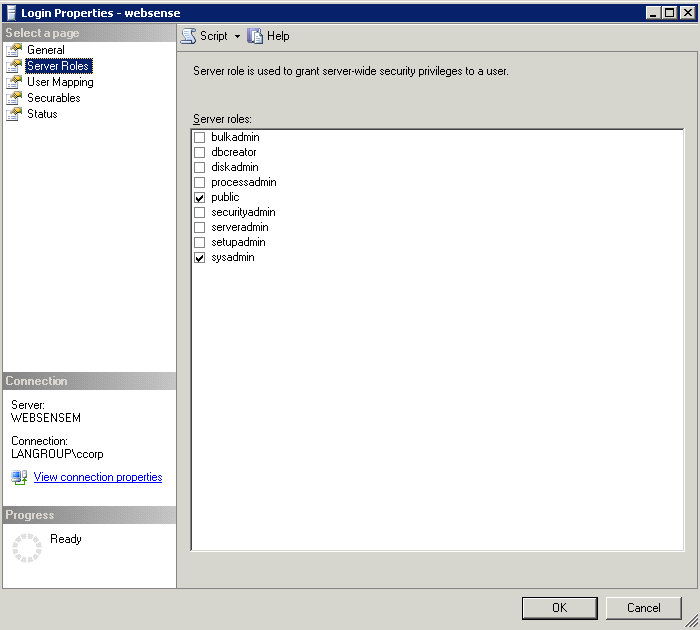
I know for a fact that both SQL 2005 and 2008 are supported. The Websense documentation states that the Websense setup creates the SQL Websense database automatically. Because of this I gave my SQL Websense account "dbcreator" permissions. As a test I attempted giving my Websense account "sysadmin" permissions instead of "dbcreator". "sysadmin" is like "Domain Admin" rights in the world of SQL, usually a very bad thing to do as it compromises the security of your SQL server.


After giving the account sysadmin all was fine.

Find out what version of SQL I'm running?

To find out what version of SQL is running along with the service pack run the following SQL Query:

SELECT SERVERPROPERTY('productversion'), SERVERPROPERTY ('productlevel'), SERVERPROPERTY ('edition')

Diagnosing SQL Logon Failures

Today I had problems logging on to MSSQL 2008 R2 through SQL Server Management Studio. I read this really good blog post from the Microsoft SQL Product Manager Il-Sung Lee:

http://blogs.msdn.com/b/sql_protocols/archive/2006/02/21/536201.aspx

He said that the error state you receive is always 1 to prevent information disclosure to unauthenticated clients. To get the real error state you must go to the SQL "ERRORLOG" file located:

C:\Program Files\Microsoft SQL Server\MSSQL10_50.MSSQLSERVER\MSSQL\Log

On Il-Sung Lee blog post he has a list of all error states to do with authentication and a description of what the error state is.

In the ERRORLOG file it showed me what my problem was, so I installed the SQL Authentication component.

2010-08-23 09:52:29.05 Logon Error: 18456, Severity: 14, State: 58.
2010-08-23 09:52:29.05 Logon Login failed for user 'websense'. Reason: An attempt to login using SQL authentication failed. Server is configured for Windows authentication only. [CLIENT: 172.16.1.14]

Very handy post by Il-Sung Lee

Sunday, May 16, 2010

SQL 2008 Licensing

I just found a very handy site worth blogging. Please check this site out if your looking to purchase SQL 2008 as you will need to understand how the licensing works.

http://www.microsoft.com/sqlserver/2008/en/us/licensing-faq.aspx

Tuesday, April 13, 2010

Working with SPN's and SQL Server

In this post I will address SPN's and the relationship they have with SQL Server.

What are SPNs?

A service principal name (SPN) is the name by which a client uniquely identifies an instance of a computer account or service that runs on the computer account. The Kerberos authentication service can use an SPN to authenticate a service. When a client wants to connect to a service, it locates an instance of the service, composes an SPN for that instance, connects to the service, and presents the SPN for the service to authenticate.

Where are SPN's stored?

SPN's are stored on the computer account itself in Active Directory. You can register or view SPN's using the setspn.exe tool from the windows 2003 support tools pack which can be downloaded from here:

http://www.microsoft.com/downloads/details.aspx?FamilyId=6EC50B78-8BE1-4E81-B3BE-4E7AC4F0912D&displaylang=en

You can use this tool to view SPN's associated with a server by typing:

setspn -l servername


Notice in the above screenshot that not all servers have SPN's. By default no server will have an SPN. Some applications automatically register an SPN record for the computer account (only if the application runs as a domain admin account). Other times you will need to create SPN's manually using the setspn.exe utility.

To allow computers to dynamically create their own SPN please read Microsoft KB 319723 (specifically Step 3). You need to grant "SELF" permissions to a few attributes in the schema.:

http://support.microsoft.com/kb/319723

Also in the example above, if you see it say "HOST/computer name", this means the SPN references the entire computer object for kerberos authentication. If you see it say "SOMETHING ELSE/computer name" it means its registered specifically to a service.

The SPN is stored on the computer account objects themselves under an attribute called "servicePrincipalName":


Please note SPN's can also be used for user accounts!

How can I use SPN's for client connections into my SQL Server?

In SQL you create "Logins" used for authentication under the security container in SQL Management Studio. When creating Logins you can use windows authentication or SQL authentication accounts. With windows authentication you can only use the following methods for authentication:
- User accounts
- Group accounts
- Service Principal Names

The following screenshot shows this:


Service accounts can be used as an SPN. They are specified through the connection attribute for the Kerberos authentication and take the following formats:

• username@domain or domain\username for a domain user account

• machine$@domain or host\FQDN for a computer domain account such as Local System or NETWORK SERVICES.

Here is an account in SQL using an SPN for a computer domain account:


The SQL Server Itself

The SQL Server itself also needs SPN's registered for all its services. For some additional reading please look at:

http://technet.microsoft.com/en-us/library/bb735885.aspx
http://msdn.microsoft.com/en-us/library/ms191153.aspx

You can configure automatic registration of SPN's for SQL service accounts. If your interested in doing this please see this blog post I wrote:

http://clintboessen.blogspot.com/2010/02/dynamically-set-spns-for-sql-service.html

Wednesday, February 10, 2010

Dynamically Set SPN's for SQL Service Accounts

For SQL Services Accounts they must have a SPN (service principal name) set. If the service account is also a Domain Admin this will be done automatically. If your SQL service account is not a Domain Admin it will not be able to set the SPN automatically. Usually a way to get around this is to use a program called setspn.exe and set the SPN on behalf of the user account as an Administrator. setspn.exe is part of the windows resource kit.

I am going to show you another way how to do this - to allow a non-Domain Admin SQL service account to dynamically register its own SPN without having to use setspn.exe.

1. Click Start, click Run, type Adsiedit.msc, and then click OK.

2. In the ADSI Edit snap-in, expand Domain [DomainName], expand DC= RootDomainName, expand CN=Users, right-click CN= AccountName, and then click Properties.

3. In the CN= AccountName Properties dialog box, click the Security tab.

4. On the Security tab, click Advanced.

5. In the Advanced Security Settings dialog box, make sure that SELF is listed under Permission entries. If SELF is not listed, click Add, and then add SELF.

6. Under Permission entries, click SELF, and then click Edit.

7. In the Permission Entry dialog box, click the Properties tab

8. On the Properties tab, click This object only in the Apply onto list, and then make sure that the check boxes for the following permissions are selected under Permissions:
- Read servicePrincipalName
- Write servicePrincipalName

9. Click OK three times, and then exit the ADSI Edit snap-in.

Below is a screenshot of the configuration required:


This will allow the SQL Serive Account to automatically set its own SPN so you do not have to worry about using setspn.exe anymore.

Cannot generate SSPI context. (Microsoft SQL Server)

When logging into an SQL 2005 server you may experiance the following error:

Cannot generate SSPI context. (Microsoft SQL Server)


The "Cannot generate SSPI context" error is generated when SSPI uses Kerberos to delegate over TCP/IP and Kerberos cannot complete the necessary operations to successfully delegate the user security token to the destination computer that is running SQL Server.

There is a number of causes for this error, they can be found here:

http://support.microsoft.com/kb/811889

In my case I am currently doing a domain migration to a new forest. As part of the ADMT Migration process you need to migrate service accounts. When the ADMT Agent replaced the service account for my SQL services to use the domain in the other forest, this error started occuring.

The reason is SSPI (Security Support Provider Interface) requires that its service accounts be located in the same active directory forest. It doesnt matter if they are in other domains, it just must be the same forest. To get around this I just set all the SQL services to "Local System" instead of using the service account for the migration. When the SQL server gets migrated to the new domain, these accounts can be set back to service accounts.


If you are having this issue I highly recommend a full read of Microsoft KB811889 as it explains this in great detail.