Sunday, August 12, 2012

An insight into OWA Desktop by Messageware

In this article we will be looking at a product called OWA Desktop by Messageware.

What is OWA Desktop?

OWA Desktop provides users with an email client without having to install Microsoft Outlook.  It enhances the functionality of Outlook Web App 2010 or Outlook Web Access 2007 resolving many of the limitations which prevent OWA being used as a full blown email client.

OWA by itself has a number of problems when being used as an email client.  It runs in an internet browser and requires constant user interaction to ensure it does not sign the users session out.  Another problem with OWA is there is nothing stopping a user from accidentally closing the internet browser running their OWA session.

OWA Desktop is a light weight application written in Microsoft .Net Framework 3.5 SP1 which runs in the background on a users workstation providing them with a constant connection to Microsoft OWA.  It provides alerts, notifications, email, calendar and tasks access on the fly as you would get out of Microsoft Outlook all from an easy to use OWA Interface.

OWA Desktop runs on the following operating systems:
  • Windows XP
  • Windows Vista
  • Windows 7
  • Windows 8
  • Windows Server 2003
  • Windows Server 2008
  • Windows Server 2008 R2
  • Windows Server 2012
OWA Desktop currently supports the following version of Exchange:

  • Exchange 2007
  • Exchange 2010
  • Office 365

  • OWA Desktop utilises a combination of Exchange Web Services and Outlook Web App to interact with the Exchange 2007/2010 servers.  OWA Desktop will support Exchange 2013, however this is still in development.

    When would you want to deploy OWA Desktop?

    Not all users require programs such as word processors and spreadsheet applications to perform their daily job.  Some users may only require an email client and it doesnt make sense to deploy the entire Microsoft Office suite.  Microsoft Office is a serious investment which needs to be factored into any IT budget.  There is a gap which needs to be filled to provide companies a cheap alternative for a desktop email client.  Messageware have filled this much needed gap with OWA Desktop providing companies the ability to deploy an email client to users at a cost of around $1.50 EURO a user per month.  Pricing is subject to change and depends on the number of users licenses purchased but regardless it is a significant cost saving over the purchase of Microsoft Oulook.  To get a quote for your organisation contact SalesTeam@messageware.com.
    Running OWA Desktop for end users provides additional cost savings other then just licensing.  It also provides a reduction in IT operational expenses.  Deploying Microsoft Office to users means that Microsoft Office needs to be maintained.  Administrators need to deploy critical security updates and patches to Microsoft Office to ensure security vulnerabilities in the application are not exposed.  Products such as Symantec Altiris, Microsoft System Center Configuration Manager (SCCM) or Windows Software Update Services (WSUS) must be put in place to maintain various industry security compliance's such as CIS or NIST to patch security vulnerabilities in Office when discovered.  When running OWA Desktop, all content displayed within OWA Desktop is generated from the Exchange server through OWA and Exchange EWS.  Administrators no longer need to worry about patching and maintaining Microsoft Office.

    OWA Desktop In Action

    OWA Desktop is very easy to configure, it supports autodiscover and only requires a few details to get started.


    Once setup OWA Desktop sits in your system tray.  Any incoming emails, meeting requests or appointments popup in the bottom left the users screen as it would in Microsoft Outlook.  It remains logged in and will automatically reconnect should disruption to OWA services occur.  OWA Desktop can also be configured to automatically load with Windows to ensure users never miss an email.


    When right clicking on OWA Desktop the application menu appears.  Users can open their inbox, calendar, tasks or compose a new email message at the click of a button.  Compared to the number of clicks required to open a new browser, login to OWA, and click the new compose button it makes utilising OWA as a desktop email client simple, easy and hassle free.


    The following screenshot shows the Inbox screen of OWA Desktop.


    The following screen shows composing a new email via OWA Desktop.


    It is OWA as you know it, simple, fast, easy to use in a desktop environment!

    Messageware Active Send

    Another component of OWA Desktop which is installed seperately using a seperate MSI file is Messageware Active Send.  This incorporates the send to mail functionality of the Windows operating system with OWA associating OWA as an application.  When a user right clicks a file, navigates to Send To and selects Mail recipient, Messageware Active Send will automatically upload the file into Exchange 2010 OWA and open the file as an attachment to a new email message in OWA - very cool.  This also works with any "mailto:" hyperlinks which may appear within documents, email messages or web pages.


    Deployment

    Both OWA Desktop and Active Send are MSI files which can be deployed to workstations on mass through group policy software deployment or another application such as SCCM or Symanted Altiris.

    Conclusion

    OWA Desktop is a great low cost application for users who do not require the full Microsoft Office product suite.

    Friday, August 10, 2012

    RemoteApps do not appear in RD Web Access when configured to use the RD Broker

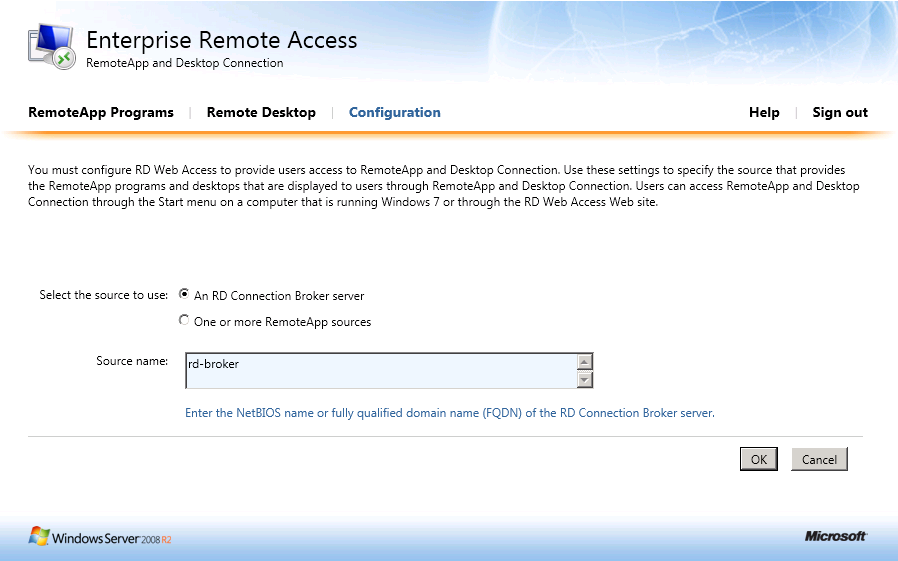
    Whilst building a new RDS server farm I ran across a problem which had me stumped for a few hours.  When configuring RD Web Access you need to specify a source for the RemoteApps, either an RD Broker or a bunch of Session Hosts as per the following screenshot.


    When I selected "An RD Connection Broker" and specified the name of the broker server, I did not get any RemoteApps appearing in my "RemoteApps Programs" tab.  However when I specified the name of a Remote Desktop Session Host, the applications on the session host appeared as selected.

    After much troubleshooting the problem was identified.  On each RD Session host server there is a local group called "TS Web Access Computers" which documentation on TechNet says you must nest the computer accounts of any RD Session Hosts for which you want applications published.  However if you wish to publish applications through an RD Connection Broker, you must nest the RD Connection Broker computer account inside this group instead.  I found this a little unclear in the TechNet documentation.  After fixing up the group nesting the problem was resolved.

    Tuesday, August 7, 2012

    How to Add a Computer Account to a Restricted Group in Group Policy

    There may be a time where you need to add a computer account to a number of local groups using Group Policy restricted groups.  Computer accounts however do not appear in the list of Object Types within Group Policy.


    It is however possible, simply add the computer account without clicking Browse in this format:

    DOMAIN\ComputerAccount$


    As long as you add the dollar sign $ at the end of the computer account name, group policy will process it.

    Sunday, August 5, 2012

    Open File - Security Warning with AppData Folder Redirection

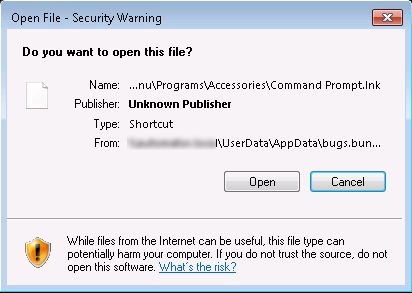
    In the process of setting up a new Windows Server 2008 R2 RDS server farm I came acros the following problem.  Whenever opening ANY application on my RD Session Hosts, I received the following "Open File - Security Warning".


    After a bit of investigation I noticed that this error was occurring because I had a folder redirection policy in place for user Application Data.

    To resolve the problem I noticed if I add the UNC path to where I'm redirecting the AppData to Internet Options, Local Intranet it resolves the problem.


    This resolves the problem.  However I have multiple users I want to configure this setting for.  To configure this against multiple users using group policy, configure the following setting located under:

    User Configuration --> Policies --> Windows Settings --> Internet Explorer Maintenance --> Security --> Security Zones and Content Ratings


    Under Security Zones and Content Ratings, select Import the current security zones and privacy settings then click Modify Settings.

    When the Internet Options dialog box opens, configure the Local intranet zone as above and save the settings.


    Apply the group policy object to the users experiencing the problem.

    Rename VMDK files in ESX

    vSphere Client v4-v5 does not allow you to rename a VMDK file through datastore manager.  To rename a VMDK you must do this through management shell (SSH).

    To enable the Shell through the GUI refer to the following screenshot:


    Once in the shell, login through an SSH client such as Putty.

    Navigate to the location in your VMware datastore in which you wish to rename the VMDK using the following command:
    cd "/vmfs/volumes/Datastore Name/Directory Name/"

    Use the following command to rename the virtual machine:
    vmkfstools -E examplevm.vmdk examplevm-renamed.vmdk

    Tuesday, July 31, 2012

    Why upgrade to Exchange 2013?

    Your a company stakeholder, your currently running Exchange 2010, it sends and receives emails (lets hope).  Why should you spend the money and upgrade to Exchange 2013?

    In this article we are going to look at some of the new features of Exchange 2013 which I believe will wet your appetite for implementing Exchange 2013.

    Email Malware Protection

    Back in 2009 I wrote a blog post on how to protect an Exchange 2007/2010 server from spam using the native spam filtering technology built into the product such as RBL providers, Intelligent message filter (IMF) and safe list aggregation.  This blog post can be found here:

    http://clintboessen.blogspot.com.au/2009/10/exchange-2007-anti-spam-filtering.html

    When configured correctly, it works pretty darn good!  I use native Exchange email protection for my personal Exchange server and with the RBL providers I have in place, I receive very little spam.

    The problem is this solution cannot be deployed to customers as it was missing anti-virus technology and whilst I know what emails are malicious or not, there was nothing from stopping a receptionist from opening that FedEx.zip attachment for her package in the post which is running late.

    In Exchange 2013 Microsoft have now incorporated the Microsoft Anti-Malware engine into Exchange.  Combined with Safelist Aggregation, RBL Providers and Microsoft IMF, the integrated Anti-Virus and Anti-Spam technology is great for any company on a tight budget.

    Better Administrative Delegation for Large Organisations

    Exchange 2013 provides better administrative delegation for large organisations through the use of RBAC.  When your help desk staff and specialist users login to to the new Exchange Administration Center (EAC), EAC only displays items to areas of interest the user has access to.  All other features of Exchange are not displayed to the user.

    Whilst Exchange 2010 also had RBAC, delegating access to help desk to perform a simple tasks such creating and managing recipient mailboxes was painful.  With the old management tools in Exchange 2010, whilst users only had access to perform specific tasks, they were able to see the entire console.  When users attempted to perform a task which they do not have access to, they would receive a nasty error message.  This is no longer a problem moving forward with Exchange Administration Center (EAC).

    eDiscovery Center

    eDiscovery Center is a new tool which allows Administrators and compliance officers to preserve and discover data across your entire organisation.  No this is not the multi-mailbox search tool introduced in Exchange 2010, this tool allows you to identify, hold and analyze your organizations data from Exchange, Sharepoint and Lync all from a single console.  With eDiscovery Center the data remains in-place so there is no need for a seperate store.

    For technical readers, to use the eDiscovery Center you need to be a member of the Discovery Management role group just like you did for Multi-Mailbox search in Exchange 2010.

    For eDiscovery center to work between applications you must also be running Lync 2013 and Sharepoint 2013.

    New Site Mailboxes

    A couple of my larger customers have done survey's to end users asking them what their favorite or most productive line of business application is.  In each servery the answer has always come back with "Outlook".  Lets face it, most of us office workers live in Outlook, its an application which doesn't get closed!  Microsoft has taken this feedback on board and provided a new type of Mailbox called a site mailbox.

    A site mailbox allows users to access documents from a Sharepoint site through the Outlook client meaning the user no longer has to go to the Sharepoint web interface.  Not only can they open documents through Outlook, they can also preview documents through the Outlook interface.

    Luckily the Exchange team came to the rescue here, Sharepoint was never that great at sharing now was it?  Sorry to any Sharepoint administrators reading this - but you know its true :)

    To utilise Site Mailboxes, the following software must be utilised together::
    • Outlook 2013
    • Exchange 2013
    • Sharepoint 2013
    To answer your question about OWA support, Yes, Site Mailboxes are available through Outlook Web App.


    Data Loss Prevention (DLP) Capabilities

    Data Loss Prevention capabilities is a technology Exchange server has required for some time to meet various industry compliance requirements such as PCI DSS compliance for handling credit card information. The new Exchange DLP features identify, monitor, and protect sensitive data such as credit card details through deep content analysis.  Exchange offers built-in DLP policies based on regulatory standards such as PII and PCI, and is extensible to support other policies important to your business.

    New Policy Tips (the new version of Mail-Tips) supported as of Outlook 2013 inform users about policy violations as content is being created and about how information should be handled according to organizational standards.

    The following screenshot shows policy tips prompting an Outlook 2013 that the attachment containing fake credit card numbers has indeed credit card numbers.


    The New Windows 8 Experience

    Your users will love you for it.  The sexy Windows 8 style experience is now available to both Outlook and OWA.  OWA user experience scales beautifully for any form factor and size – PC or slate or phone – and has a modern user experience voice with great support for touch and motion. OWA now offers three different UI layouts optimized for desktop, slate, and phone browsers.

    No need for OWA Mini (introduced in Exchange 2010 SP2), the new OWA looks great on tiny screens such as mobile phones.

    The following screenshot shows OWA 2013 on PC, Tablet and Mobile Phone.


    While we are talking about OWA, I would also like to point out that in Outlook Web Access 2013 you no longer needs a constant Internet connection to operate.  Provided you have Internet access to load the Outlook Web App page, you can work in Outlook Web App in offline mode with no network connectivity.  Your emails will automatically synchronise the next time the internet connectivity is restored.  This provides users a great OWA experience from remote locations or connections with intermittently connected network.

    Public Folders

    Public Folders, yes they are still around however now they are new and improved.  Public Folders are no longer stored in a separate public folder database like they were in previous versions of Exchange.  Public Folders have been moved to whats known as a Public Folder mailbox.  This means they share the same storage, indexing capabilities, and high availability technologies utilised such as Database Availability Groups (DAG).

    Because public folders are now stored in DAGs as a new type of mailbox, "Public Folder mailboxes", they are no longer multi-master.  Lets face it, public folders in multi-master were always an epic disaster due to the number of replication conflicts which were generated so loosing this will not be a big deal moving forward.  There are better technologies available for dealing with replication conflicts such as Microsoft Distributed File System.

    The nightmare of maintaining public folders is also now gone, no more SMTP replication of data between mailbox servers.  As Public Folder databases sit within database availability groups, they replicate using standard transaction log shipping.  Wonderful.

    I hope this post has been useful.  For more information on Exchange 2013 please see the Exchange 2013 section of my blog and also make sure to follow the Exchange Team Blog!

    A first look into Exchange 2013

    In this post I will be taking an initial look into Exchange 2013, the next release of Microsoft Exchange scheduled for release later this year.  This post contains only information which is publicly available.  Exchange 2013 is the biggest architectural change in Exchange server since Exchange 2007.

    Exchange 2013 is a new generation of Exchange, let me explain what I mean by the new generation.

    Exchange 5.5 and below is generation 1 of the product, the initial build of Exchange before Active Directory came into play.

    Exchange 2000-2003 is generation 2 of the product, in which significant changes to the product were made.  From Exchange 2000 upwards, Exchange began storing majority of its configuration within Active Directory.

    Exchange 2007-2010 is generation 3 of the product where we saw a huge architectural changes such as the concept of 5 Exchange server roles.

    Exchange 2013, also known as Exchange build 15 is generation 4 of the product.  In Exchange 2013 we have now consolidated majority of the roles back to a single role much like it was in Exchange 2013.

    When Exchange 2013 is released as RTM there will be a total of 2 roles.  These roles will consist of:
    • The mailbox server role (formally known as a back-end server in Exchange 2003)
    •  The client access server role (formally known as a front-end server in Exchange 2003)
    If you have a long working history with Exchange server, think of Exchange 2013 architecture as it was in Exchange 2000/2003.  Client access servers proxy the connections, the mailbox servers do all the work.

    Exchange 2013 Client Access Server

    The Exchange 2013 client access server proxies connections to Exchange 2013 mailbox servers such as Microsoft Office Outlook, Outlook Web App, Mobile Devices, POP, and SMTP.  Client access servers can still be organised into CAS Arrays like they were in Exchange 2010.  Client Access servers perform authentication, redirection, and proxy services; it doesn't perform any data rendering utilizing internet information services (IIS).  All Exchange Web Service virtual directories exist in the Exchange 2013 mailbox servers just like they did in Exchange 2003.  The client access server merely proxies the connection to the correct mailbox server which is now responsible for processing the request.

    Because all data rendering for web services is now performed on the Exchange 2013 mailbox servers, all connections to the Client Access server are stateless which means that there is no need to maintain affinity between a client and an individual Client Access server for subsequent connections because all data processing and transformation occurs on the Mailbox server.  This architecture change means simple "stupid" load balances can be used with no affinity or affiliation required.  In majority of cases Microsoft Network Load Balancing (NLB) with all its weaknesses is more then enough to load balance Exchange 2013 client access.

    One big change in Exchange 2013 is all client access connectivity to Exchange 2013 must come in through HTTPS.  The MAPI protocol is now just a back end protocol for the mailbox servers.  Outlook must connect through RPC over HTTP(s) both internally and externally.

    Whenever you deploy an Exchange 2013 client access server in an Active Directory site, you must also deploy an Exchange 2013 mailbox server in the same Active Directory site.

    Exchange 2013 Client Access Architecture

    When you deploy an Exchange 2013 client access server array, there are two components
    • Client Access service
    • Front End Transport service
    The Client Access service provides the following services:
    • Provides a unified namespace, authentication, and network security.
    • Handles all client requests for Exchange.
    • Routes requests to the correct Mailbox server.
    • Proxies or redirects client requests for legacy servers, such as Exchange 2007 and Exchange 2010 Client Access.
    • Enables the use of layer 4 (TCP affinity) routing... i.e. stupid load balances with no affinity.
    The Front End Transport service provides the following services:
    • Protocol level filtering   Performs connection, recipient, sender, and protocol filtering
    • Network protection   Centralized, load-balanced egress and ingress point for the organization.
    • Mailbox locator   Avoids unnecessary hops by determining the best Mailbox server to deliver the message to.
    • Load-balances client and application SMTP requests.
    The Front End Transport service can't inspect message content, but it has complete access to the SMTP protocol conversation, so it can filter messages based on connections, domains, senders, and recipients.  There is no queue on the Front End Transport service, mail is simply proxied directly to a mailbox server.  Because the Front End Transport service is aware of TCP connections you can configure some spam filtering however such as RBL providers such as Spamhaus.  For content filtering such as Exchange intelligent message filter (IMF), you guessed it, this needs to be performed on the  mailbox servers unless you have a smart host in play.

    Exchange 2013 Mailbox Server

    Just like in Exchange 2003, the Exchange 2013 Mailbox Server is once again the work horse of Microsoft Exchange.  The Exchange 2013 Mailbox Server has taken on tasks from many of the roles such as client access services, hub transport services and unified messaging services.  For example:
    • All Outlook Web App, Active Sync and Outlook Anywhere (RPC over HTTP) sessions are processed on the Exchange 2013 mailbox servers
    • The message queue and mail routing is performed on the mailbox servers (which the exception of the mailbox locator service on the client access which provides the ability to always deliver inbound mail to the correct mailbox server in the same AD site)
    • Provides Unified Messaging services
    • And of course it acts as a mailbox server providing companies enhanced Database Availability Groups (DAGs) which are improved over Exchange 2010.
    The below diagram shows a high level overview of the Exchange 2013 architecture inside a single Active Directory site.


    Why the big change?

    Now why did Microsoft make such significant changes to the Architecture in Exchange 2013?  When Exchange 2007 released the concept of a multi-role servers, processing power was significantly less then what it is today.  Large scale deployments of Exchange 2003 which extended into the hundreds of thousands of users faced significant resource limitations due to hardware back in the day.  Microsoft needed to address this to allow Exchange to extend into larger scale deployments and as a result separate the server roles.

    Due to a lot of smart people doing a lot of smart things over the years, today's servers have so much grunt we are virtualising to try and make use of it all.  This architecture of multi-role servers no longer makes sense!  In fact for large scale deployments of Exchange, as of Ex2010 SP1, Microsoft started recommending building all Exchange 2010 servers as multi-role servers and simply adding an additional server when required as a simple unit of scaling out.  The recommendations for multi-role Exchange servers can be found here:

    http://technet.microsoft.com/en-us/library/dd298121.aspx

    Now the problem here is the Exchange 2010 roles have been designed to run on separate servers and when all installed on the same server they still follow the same processes to communicate with one another through a TCP network call on localhost.  This creates inefficiencies as separate roles are all operating on the same server when the roles could be more incorporated to work more as one to provide better performance.  In fact this is one of the selling points behind Exchange 2013 from Microsoft:

    "been re-written in managed code to improve performance in additional IO reduction and reliability."

    Requirements

    First of all what operating systems are supported to install Exchange Server 2013?  Easy one:
    • Windows Server 2008 R2 Standard, Enterprise and Datacenter Editions or higher.  Make sure it is R2 as 2008 is not supported.
    • Windows Server 2012 
    What about migrating to Exchange 2013?  Migrating to Exchange 2013 is only supported from:
    • Exchange 2007
    • Exchange 2010
    Despite all the noise I made whilst in Seattle earlier this year, the Exchange product team will not be supporting Exchange 2003 co-existence even though there are still many customers running Exchange 2003. I guess this just means the uptake to Exchange 2013 will not be as fast as those customers will need to perform a step migration through either Exchange 2007 or Exchange 2010.

    Whilst Exchange 2013 now has greater support for IPv6 such as Unified Messaging now supporting IPv6, a pure IPv6 environment isn't supported.  IPv6 is only supported when IPv4 is also used.

    Active Directory requirements are that of 2003 Forest Functional Level (FFL) and 2003 Domain Functional Level (DFL) or higher.  Schema master must run on Server 2003 SP2 or higher.

    At this stage Exchange 2013 only supports the following clients:
    • Outlook 2013 Preview
    • Outlook 2010 SP1 with April 2012 Cumulative Update 
    • Outlook 2007 SP3 with July 2012 Cumulative Update
    • Entourage 2008 for Mac, Web Services Edition
    • Outlook for Mac 2011
    Multi-Role Servers

    Can you install the Exchange 2013 Client Access Role and the Exchange 2013 Mailbox Role on the same server?

    The answer is Yes.

    Edge Transport Role

    Currently there is no Edge Transport role for Exchange 2013.  Microsoft are advising customers to use Exchange 2010 SP2 Edge Transport with Exchange 2013 for now.  Due to a tight product release time frame the Exchange product team have not had time to develop the Exchange 2013 edge transport role however this role will be released in the future through a service pack.

    A New Management Interface

    The popular Exchange Management Console (EMC) which was used by for managing Exchange 2007/2010 has been removed from Exchange 2013.  Administrators are provided two methods for maintaining an Exchange 2013 environment:
    • Exchange Management Shell (EMS) - also available in Exchange 2007/2010
    • Exchange Administration Center (EAC) - new in Exchange 2013.
    Exchange Administration Center is a web based administration console for Exchange.  Personally I don't agree with this decision as Microsoft has produced Microsoft Management Console (MMC) to be the standard for managing a windows network - this diverts away from the standard.

    The main reason why Microsoft moved towards a web based interface for managing Exchange is due to Role Based Access Control (RBAC).  RBAC provides a granular method for delegating control to administrators.  With Exchange Management Console in Exchange 2010, when an administrator delegates a service desk operator to perform basic tasks such as create and manage recipient mailboxes, the service operator is able to perform his duty however is able to view all other features and functionality normally presented in EMC.  With EAC in Exchange 2013, the web console hides all administrative features and functionality except for the areas the user has been delegated access to.  With MMC hiding features is a difficult task which I believe is the prime reason Exchange management has been moved to a web interface.

    There are also other benefits to having a web based management tools which EAC provides.  Administrators can now maintain Exchange environments from any PC with a web browser.  Yes - EAC does provide multi-browser support including all the major web browsers such as Chrome, Firefox, Safari and of course Internet Explorer.

    Thursday, July 26, 2012

    Operation failed. Error code: 0x8007200a

    We had a problem with a group policy object which existed in SYSVOL however did not display in Group Policy Management Console.  All group policy objects are located in the Active Directory schema domain partition under:

    Domain --> System --> Group policies

    You can view these policies using ADSI Edit by connecting to the default domain partition.  The policy that was showing up in SYSVOL was also displaying in ADSIEdit however we could not view any attributes on the object, or the objects class.  When trying to delete the object we got the following error.

    Operation failed.  Error code: 0x8007200a
    The specified directory service attribute or value does not exist.


    This problem occurs when you do not have permissions to view the attributes of the object.  Check that you have ALLOW permissions to read the object or that there are no DENY permissions.  In our case someone had set Enterprise Admin to DENY read, hence the issue.

    Wednesday, July 25, 2012

    Windows Desktop Search 4 lagging Outlook

    When utilising Microsoft Outlook in Cached Exchange Mode, Windows Desktop Search 4 is used to index the content in the Outlook OST to allow users to perform fast searches for emails and content within Outlook.  When Windows Deaktop Search 4 goes to first index email within a users inbox, this creates large amounts of local disk activity on the users workstation which causes performance issues especially if the user does not have a Solid State Disk (SSD).

    This can be resolved by throttling the amount of items Windows Desktop Search 4 can index per minute.  Use group policy to implement Windows Desktop Search throttling by modifying the following group policy setting:

    Computer Configuration\Administative Templates\Windows Components\Search\Enable throttling for online mail indexing


    Here we have it limited to only index 60 mail items per minute.  This resolved Windows Desktop Search performance issues at my clients site.

    Saturday, July 21, 2012

    MapiExceptionNetworkError: Unable to make connection to the server. (hr=0x80004005, ec=2423)

    When performing cross-forest mailbox moves you will experience an error if your Exchange 2010 server cannot resolve BOTH the FQDN and NetBIOS name of your remote Exchange server and Global Catalog.  This error can occur when performing a cross-forest mailbox move from Exchange 2010, Exchange 2007 (SP2 and above) and Exchange 2003 SP2.  Provided you have already run the Prepare-MoveRequest.ps1 script, when attempting the mailbox move the following error may be experienced:

    MapiExceptionNetworkError: Unable to make connection to the server. (hr=0x80004005, ec=2423)
    Diagnostic context:
        ......
        Lid: 16280   dwParam: 0x6BA      Msg: EEInfo: ComputerName: n/a
        Lid: 8600    dwParam: 0x6BA      Msg: EEInfo: ProcessID: 2888
        Lid: 12696   dwParam: 0x6BA      Msg: EEInfo: Generation Time: 2012-07-21 10:56:50:629
        Lid: 10648   dwParam: 0x6BA      Msg: EEInfo: Generating component: 18
        Lid: 14744   dwParam: 0x6BA      Msg: EEInfo: Status: 11001
        Lid: 9624    dwParam: 0x6BA      Msg: EEInfo: Detection location: 320
        Lid: 13720   dwParam: 0x6BA      Msg: EEInfo: Flags: 0
        Lid: 11672   dwParam: 0x6BA      Msg: EEInfo: NumberOfParameters: 1
        Lid: 8856    dwParam: 0x6BA      Msg: EEInfo: prm[0]: Unicode string: kbombserver.kbomb.local
        Lid: 45169   StoreEc: 0x977
        Lid: 52465   StoreEc: 0x977
        Lid: 60065
        Lid: 33777   StoreEc: 0x977
        Lid: 59805
        Lid: 52209   StoreEc: 0x977
        Lid: 56583
        Lid: 52487   StoreEc: 0x977
        Lid: 19778
        Lid: 27970   StoreEc: 0x977
        Lid: 17730
        Lid: 25922   StoreEc: 0x977
        + CategoryInfo          : NotSpecified: (0:Int32) [New-MoveRequest], RemoteTransientException
        + FullyQualifiedErrorId : 724FCAC2,Microsoft.Exchange.Management.RecipientTasks.NewMoveRequest


    In this environment I could resolve my Exchange 2007 server from my Exchange 2010 server through NetBIOS name however not through FQDN.  Remember, you need to be able to resolve both.

    There are a few ways you can make the FQDN resolve, these include DNS, Host File or a DNS Suffix on the server.  I simply added a zone file in DNS for my Exchange 2010 forest to allow me to complete the cross-forest mailbox moves.


    I can now resolve both NetBIOS and FQDN of my Exchange 2007 server.


    After being able to resolve both the NetBIOS and FQDN, the mailbox move completes successfully.


    Tuesday, July 17, 2012

    Unknown StartTrace error (183)

    If the Exchange User Monitor (ExMon) crashes, when relaunching the ExMon application you will get the following error:

    Unknown StartTrace error (183)


    This error occurs because there is still an active Event Trace open.  To resolve this problem you need to kill the active Event Trace.  In Windows Server 2000/2003 the Event Trace can be killed using a tool called Tracelog.exe which can be downloaded from the following URL:

    http://www.microsoft.com/en-au/download/details.aspx?id=1370

    In Windows Server 2008 the Event Trace can be killed using a tool called Logman.exe

    To view all Data Collector Sets currently running on a Windows 2008 server with Logman run the following command:

    logman query -ets


    To kill the event trace use the following command:

    Logman stop "Exchange Event Trace" -ets


    After stopping the Event Trace, ExMon will now load correctly.

    Diagnosing Performance Issues in Exchange

    This blog post looks into diagnosing performance issues with Exchange 2010.  Like most applications, Exchange performance can be effected by numerous bottlenecks within a system including:
    • Storage bottlenecks
    • CPU Utilisation
    • Anti-Virus applications
    • Memory shortage
    • Rouge applications installed on the Exchange server
    • Global Catalog whether the Global Catalog servers are to busy or Exchange is using a Global Catalog server in a remote site due to AD sites and services being configured incorrectly.
    • An individual user causing high amounts of load on the Exchange infrastructure, not so common now days due to Exchange Throttling Policies, however if the default Throttling Policy is modified always a possibility.
    • Network traffic, who knows a broadcast storm may be occurring on your network?
    • Internet Spam or Denial of Service (DOS) attacks, your Exchange environment may be trying to process large quantities of inbound SMTP email is known as junk email.  As a result the SMTP queues may be building up.
    • Backup applications running through the day causing significant server load.
    • Monitoring applications with to many data collector sets causing significant server load.
    Exchange Server User Monitor (ExMon)

    The Exchange Server User Monitor also known as ExMon amongst Exchange professionals has been a great tool from Microsoft for tracking user session based utilisation of an Exchange server.  For a summary of ExMon along with a screenshot please visit the following blog post:

    http://clintboessen.blogspot.com/2009/07/exchange-user-monitor.html

    Unfortunately with the introduction of the RPC Client Access Service, ExMon now experiences difficulties in an Exchange 2010 environment.  If you have an Exchange 2010 mailbox server not running the Client Access Role, ExMon should work without problems.  However if the Client Access and Mailbox server roles are installed on the Exchange server, your going to experience:


    Log Name:      Application
    Source:        Application Error
    Date:          16/07/2012 11:21:51 AM
    Event ID:      1000
    Task Category: (100)
    Level:         Error
    Keywords:      Classic
    User:          N/A
    Computer:      Troy-Exch-2010
    Description:
    Faulting application name: ExMon.exe, version: 14.2.247.0, time stamp: 0x4e929c00
    Faulting module name: ntdll.dll, version: 6.1.7601.17725, time stamp: 0x4ec49b8f
    Exception code: 0xc0000005
    Fault offset: 0x00033ab5
    Faulting process id: 0x216c
    Faulting application start time: 0x01cd63021e952eca
    Faulting application path: C:\Program Files (x86)\Exchange User Monitor\ExMon.exe
    Faulting module path: C:\Windows\SysWOW64\ntdll.dll
    Report Id: 61f27c3a-cef5-11e1-acb2-005056880002


    According to Xiu Zhang from Microsoft, this bug is by design when running ExMon on an Exchange 2010 server that has Client Access and Mailbox on the same server.

    http://social.technet.microsoft.com/Forums/en-US/exchangesvrgeneral/thread/4ebba22b-d280-44dd-af06-c8e40257ad7c/

    Exchange Trouble Shooting Assistant

    Exchange Troubleshooting Assistant known as ExTRA can identify potential performance issues on an Exchange server such as mail flow and database mounting issues on computers running Microsoft Exchange Server. The tool automates specialized troubleshooting steps for identified symptoms.

    Network Monitor

    To examine potential performance issues related to high network utilization, Microsoft Network Monitor can be utilised to view the traffic on the network interface.  Network Monitor will allow Administrators to view the following information:
    • The source address of the computer that sent a frame to the network (this address is a unique hexadecimal (or base-16) number that identifies that computer on the network).
    • The destination address of the computer that received the frame.
    • The protocols used to send the frame.
    • The data or a portion of the message being sent.
    Performance Monitor

    Performance Monitor is one of the best tools monitoring performance issues as it provides an insight into potential storage bottlenecks, CPU utilisation, memory shortages, RPC MAPI latency, Exchange Queues, Global Catalog traffic and much more.  For ease of configuration, Microsoft have created a PowerShell script known as ExPerfwiz which can be downloaded from the following site:


    This script automatically creates a Data Collector Set which captures all the important information required for diagnosing Exchange performance issues.  

    To run the Script you must first digitally sign the script or set the ExecutionPolicy to Unrestricted.  This can be down using the following powershell command:

    Set-ExecutionPolicy Unrestricted


    Run the script by navigating to the script directory and executing the following powershell command.

    .\ExPerfwiz.ps1


    This creates a data collector set called Exchange_perfwiz and samples the data every 30 seconds.  This data can be generated to a report which can be viewed either in a graph or in a report.  To get to the Data Collector Set run perfmon.msc from Start --> Run.  Create a report from the Data Collector Set by right clicking on it and selecting Create Report.


    Your also able to view components from the data collector set through line and bar graphs.

    Microsoft Whitepaper

    Microsoft has put together a whitepaper for diagnosing Exchange performance issues.  Whilst written for Exchange 2003 many components are still relevant today.  I encourage you to have a read, it can be downloaded from the following link.

    http://www.microsoft.com/en-us/download/confirmation.aspx?id=19125

    Directory Services Performance

    To troubleshoot performance issues related to Global Catalog two performance counters are of relevance:

    MSExchange ADAccess
    • LDAP Read Time
    • LDAP Search Time
    Both of these counters should never exceed 100ms and for normal activity should remain under 50ms.


    Another blog post which is very helpful for additional information is the one below by Dougg Owans:

    http://blogs.msdn.com/b/douggowans/archive/2007/01/02/a-very-quick-guide-to-monitoring-the-performance-of-your-exchange-server.aspx

    Tuesday, July 10, 2012

    Removing a NIC which no longer exists in Ubuntu Linux

    Today at a customer site I had a Linux server running Ubuntu with two network interfaces, ETH0 and ETH1.  The NIC ETH1 failed and needed to be replaced.

    After I replaced the network interface, when I ran an ifconfig -a the new network card was showing up as ETH2.  This is a problem as all my firewall scripts in IPTables was written to reference ETH1.


    The physical NIC referencing such as ETH1, ETH2 and ETH3 in Ubuntu linux is stored in a file called 70-persistent-net.rules which is located under /etc/udev/rules.d/70-persistent-net.rules


    After cracking open 70-persistent-net.rules we see the 3 network interfaces.  The first two were setup when I installed Ubuntu.  The last interface, ETH2 was setup when I installed the new network interface in the PCI slot.


    I simply added the MAC address from ETH2 which in my case was 90:F6:52:00:51:65 to the already existing entry for ETH1 and removed the ETH2 entry from the configuration file.


    After making these configuration changes a reboot to the server was required.  After the server rebooted, the new network card took over the old ETH1 interface and all my firewall scripts worked correctly.


    Windows Time Sync Changes in 2008 Server

    There has been changes in the way you configure the Windows Time Hierarchy in Windows Vista, Windows 7, Windows Server 2008 and Windows Server 2008 R2.  In previous versions of the Windows Operating system such as XP and 2003 you configured your computers Windows Time Service to synchronise with a Simple Network Time Protocol (SNTP) service by using the following command:

    net time \\computername /setsntp:sntpserveraddress

    In the later versions of Windows starting from Windows Vista onwards, you configure your Windows Time Service to synchronise from a simple network time protocol using the following command:

    w32tm /config /update /manualpeerlist:ntpservername /reliable /syncfromflags:all

    For example I utilise the free NTP time service which is redundant and accessible from anywhere in the world, pool.ntp.org.  To configure a computer to synchronise with the internet time source pool.ntp.org you would run the following command:

    w32tm /config /update /manualpeerlist:pool.ntp.org /reliable /syncfromflags:all

    Note: Microsoft also has a NTP server running under time.windows.com which you can synchronise with for free.
    Once you have configured your computer to synchronise with an SNTP server, your computer will synchronise time with that server by default every week at 1am on Sunday.  This is controlled by a scheduled task built into Windows Task Scheduler.

    It is possible to manually change this schedule by modifying the SynchronizeTime scheduled task.

    If you want to perform a manual time sync, this can be done by executing the following command:

    w32tm /resync

    After executing this command from a command prompt running with elevated rights "Run as administrator" you can verify that it synchronised successfully by checking the windows system logs in Event Viewer.  The source of the log entry is from Kernel-General.


    For those of you whos computer/server is a member of an Active Directory domain, do not manually configure your computer to synchronise from an external time source.  The only computer that should be configured to synchronise to an external time source in an Active Directory environment is the server running the PDC emulator role in the forest root domain.  All other domain controllers including those in child domains synchronise up the Windows Time Hierarchy.

    The following diagram taken from TechNet provides a high level illistration of how time synchronisation works in an Active Directory environment.


    Time synchronisation is critical in an Active Directory environment due to the Kerberos authentication time offset of 5 minutes.

    If you are a Windows Administrator and are responsible for maintaining an Active Directory environment, it is very important to understand how the Windows Time Hierarchy works.  If you are new to this I recommend you read the following TechNet article for additional information.

    http://technet.microsoft.com/en-us/library/cc773013.aspx

    Sunday, July 8, 2012

    How to enable SSH to an ESXi 5 Host

    To enable the ESXi Shell from the Direct Console

    1
    Access the direct console of the ESXi host, press F2, and provide credentials when prompted.

    2
    Scroll to Troubleshooting Options, and press Enter.

    3
    Select Enable ESXi Shell and press Enter.

    On the left, Enable ESXi Shell changes to Disable ESXi Shell. On the right, ESXi Shell is Disabled changes to ESXi Shell is Enabled.

    4
    (Optional) Configure the time-out for the ESXi Shell

    a
    Select Modify ESXi Shell timeout and press Enter.

    b
    Enter the time-out value in minutes and press Enter.

    5
    Press Esc until you return to the main direct console screen.

    You can enable the ESXi Shell from the vSphere Client.

    To enable the local or remote ESXi Shell from the vSphere Client

    1
    Select the host, click the Configuration tab, and click Security Profile in the Software panel.

    2
    In the Services section, click Properties.

    3
    Select ESXi Shell and click Options.

    4
    Change the ESXi Shell options.

    To temporarily start or stop the service, click the Start or Stop button.

    To enable access permanently, click Start and stop with host. The change will take effect the next time you reboot the host.

    5
    Click OK.

    6
    (Optional) Configure the time-out for the ESXi Shell from the vSphere Client.

    a
    In the Configuration tab’s Software panel, click Advanced Settings.

    b
    In the left panel, click UserVars.

    c
    Locate UserVars.ESXiShellTimeOut and enter the timeout value in minutes.

    d
    Click OK.

    After you have enabled the ESXi Shell, you can use it from that monitor or through an out-of-band network connection.

    Thursday, June 14, 2012

    Unable to relay outbound email - DNS query failed

    One of my clients this morning had an issue sending outbound email from their Exchange server. The exchange server was relaying email between tenants however external emails were building up in the SMTP queue.

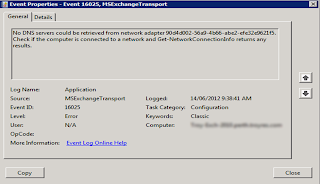
    MSExchangeTransport was logging the following error in the event logs.

    MSExchangeTransport - EventID 16025

    The DNS servers could not be retrieved from network adapter GUID.  Check if the computer is connected to a network and Get-NetworkConnectionInfo returns any results.


    Messagesin the transport queues were providing the following error message:

    451 4.4.0 DNS query failed


    After diagnosing the issue we noticed the network adapter to the server had changed and hence a different GUID.  The network adapter GUID being displayed in the event logs no longer matched a network interface on the server.  To view a list of all network interface GUID's on the server look at the following registry key:

    HKEY_LOCAL_MACHINE\SYSTEM\CurrentControlSet\Services\Tcpip\Parameters\Interfaces

    To restore outbound email to the Internet, we needed to update the GUID on the TransportServer to match the GUID of the new network adapter.  We updated Transport Server with the new GUID obtained from the registry key above using the Set-TransportServer powershell command.  This resolved the issue.


    Also please look at this post, a related problem for the 451 4.4.0 DNS query failed:

    http://clintboessen.blogspot.com.au/2010/12/451-440-dns-query-failed.html