Wednesday, July 28, 2010

Outlook Anywhere - The connection to Microsoft Exchange is unavailable

When trying to setup a new PC remotely to use outlook anywhere or previously called RPC over HTTP the following error was experienced.

The connection to Microsoft Exchange is unavailable. Outlook must be online or connected to complete this action.


PC's that had there outlook profile created in the office on the corporate network work fine with outlook anywhere however PC's for home users do not connect up - as the outlook profile was not created over MAPI.

This is a problem with Exchange 2007 which was fixed in Service Pack 2 or higher of the product. Please service pack your exchange server to resolve the problem.

An error occurred while testing the NSPI RPC endpoint.

I was getting the following error on an Exchange 2007 SP1 server when trying to run the https://www.testexchangeconnectivity.com/ for outlook anywhere.

ExRCA is testing the Name Service Provider Interface (NSPI) on the Exchange Mailbox server.
An error occurred while testing the NSPI RPC endpoint.
Test Steps
Attempting to ping RPC Endpoint 6004 (NSPI Proxy Interface) on server WATCEXCH.waturf.local
The attempt to ping the endpoint failed.
Tell me more about this issue and how to resolve it
Additional Details
RPC_S_SERVER_UNAVAILABLE error (0x6ba) was thrown by the RPC Runtime


The problem turned out to be Windows Server 2008 has made TCP/IPv6 the default communication protocol stack over which connections are made by clients connecting to the server that is running Microsoft Exchange. The RPCProxy component tries to connect to the DSProxy component through port 6004 over TCP/IPv6. However, the DSProxy component does not listen on the TCP/IPv6 stack, which causes connection requests from the RPCProxy component to fail.

Perform the following procedure:

1.Under Network Connections, select the network adapter, and then click Properties.

2.In the properties window, click to clear the check box for Internet Protocol Version 6 (IPv6).

Note:
Clearing this check box causes the RPCProxy component on the Client Access server to use TCP/IPv4 to talk to the DSProxy component on the Mailbox server.
3.Click Start, and then click Run.

4.Type regedit in the Open box.

5.Using Registry Editor, locate the following registry key:

HKEY_Local_Machine\SYSTEM\CurrentControlSet\Services\Tcpip6\Parameters

6.Right-click the Parameters key, click New, and then click DWORD (32-bit) Value. For the key, add the following values:

Name: DisabledComponents

Data: 0xFFFFFFFF

7.Restart the Client Access server.

Friday, July 23, 2010

Detach Mailbox from User Account

To Detach or Disconnect a Exchange Mailbox from a user account use Disable-Mailbox in powershell. This removes the exchange attributes from the user account in Active Directory.

To reattach the mailbox to another user account use Connect-Mailbox

You can also permanently delete a disconnected mailbox at any time by using the Remove-Mailbox cmdlet in the Exchange Management Shell

Use the Clean-MailboxDatabase cmdlet to scan the Active Directory directory service for disconnected mailboxes that are not yet marked as disconnected in the Microsoft Exchange store and update the status of those mailboxes in the Exchange store

Thursday, July 22, 2010

ID no: 00000000-0000-00000000, error code: -1056749164

When trying to export a mailbox using the Export-Mailbox powershell command I received the following error:

Export-Mailbox : Error was found for User Name (user@domain.com) because: Error occurred in the step: Moving mes
sages. Failed to copy messages to the destination mailbox store with error:
MAPI or an unspecified service provider.
ID no: 00000000-0000-00000000, error code: -1056749164
At line:1 char:15
+ Export-Mailbox <<<< -Identity mgreen -BadItemLimit 9999999 -PSTFolderPath c:\mgreen.pst + CategoryInfo : InvalidOperation: (0:Int32) [Export-Mailbox], RecipientTaskException + FullyQualifiedErrorId : 693782CA,Microsoft.Exchange.Management.RecipientTasks.ExportMailbox


To resolve this issue you need to give the Administrator who is exporting the mail rights to the users mailbox.

Get-Mailbox "users mailbox" Add-MailboxPermission -User Administrator -AccessRights FullAccess

A reboot from a previous installation is pending. Please restart the system and rerun setup.

I was trying to install Exchange Server 2007 SP3 Management Tools on a Windows 7 PC. During the installation I received the following error:

A reboot from a previous installation is pending. Please restart the system and rerun setup.


I resolved this error by deleting the the REG_MULTI_SZ value PendingFileRenameOperations from HKLM\SYSTEM\CurrentControlSet\Control\Session Manager\PendingFileRenameOperations

An error was detected while configuring Certificate Services

When trying to install a root certificate authority on a windows server 2003 standard edition server the following error occured:

An error was detected while configuring Certificate Services.
The Certificate Services Setup Wizard will need to be rerun to complete the configuration.
Certificate Services setup failed with the following error: The service cannot be started, either because it is disabled or because it has not enabled devices associated with it. 0x80080442 (WIN32: 1058)


To fix this I had to set the IIS Admin Service startup type to "Automatic". It was currently set to "Manual".

OCS Certificate Error

I was out at a client who had issues with their OCS Server.

Errors Received on Workstations

Users started receiving the following error on workstations when opening OCS.

There was a problem verifying the certificate from the server. Please contact your system administrator.


The client rebooted the server. After rebooting they started receiving the following error when opening OCS.

Cannot sign in because the server is temporarily unavailable. If the problem persists, contact the system administrator.


In the system event log on the client workstations the following error was received.

Event Type: Error
Event Source: Communicator
Event Category: None
Event ID: 7
Date: 23/07/2010
Time: 9:27:39 AM
User: N/A
Computer: KTM-10
Description:
Communicator failed to connect to server banara.rmaust.com.au (172.25.129.25) on port 5061 due to error 10061. The server is not listening on the port in question, the service is not running on this machine, the service is not responsive, or network connectivity doesn't exist.

Resolution:
Please make sure that your workstation has network connectivity. If you are using manual configuration, please double-check the configuration. The network administrator should make sure that the service is running on port 5061 on server banara.rmaust.com.au (172.25.129.25).


Errors Received on OCS Server

The following errors were received on the OCS server itself.

In the System log the following error appeared:

Event Type: Error
Event Source: Service Control Manager
Event Category: None
Event ID: 7024
Date: 23/07/2010
Time: 9:36:06 AM
User: N/A
Computer: BANARA
Description:
The Office Communications Server Front-End service terminated with service-specific error 2148204801 (0x800B0101).


The following errors were seen in the Office Communications Server logs:

Event Type: Error
Event Source: OCS MCU Infrastructure
Event Category: (1022)
Event ID: 61002
Date: 23/07/2010
Time: 9:41:10 AM
User: N/A
Computer: BANARA
Description:
No certificate has been configured for secure transport.

The certificate assigned to process DataMCUSvc(3996) was not found.
Certificate serial number: 61796F2800000000000A
Certificate issuer name: CN=RMA8, DC=rmaust, DC=com, DC=au.
Resolution:
Verify that a valid certificate has been configured.


Event Type: Error
Event Source: OCS Data MCU
Event Category: (1018)
Event ID: 41009
Date: 23/07/2010
Time: 9:41:10 AM
User: N/A
Computer: BANARA
Description:
Failed to initialize the focus adapter.

Cause: Failed to initialize focus adapter
Resolution:
Check previous event log entries and resolve them.


Event Type: Error
Event Source: OCS Data MCU
Event Category: (1018)
Event ID: 41038
Date: 23/07/2010
Time: 9:41:10 AM
User: N/A
Computer: BANARA
Description:
Office Communications Server Web Conferencing Server could not be started

Message: Operation is not valid due to the current state of the object.
at Microsoft.Rtc.Server.McuInfrastructure.HttpTransport.LoadCertificate(CertificateInfo certificate)
at Microsoft.Rtc.Server.McuInfrastructure.HttpTransport.LoadCertificate()
at Microsoft.Rtc.Server.McuInfrastructure.HttpTransport..ctor(String listeningUrl, ICccpConfigurationProvider config, XmlWriterSettings writerSettings)
at Microsoft.Rtc.Server.McuInfrastructure.CccpAdapter..ctor(String listenerUri, ICccpConfigurationProvider config)
at Microsoft.Rtc.Server.McuInfrastructure.McuCccpAdapter..ctor(String listenerUri, ICccpConfigurationProvider config)
at Microsoft.Rtc.Server.DataMCU.Hosting.Runtime.ApplicationController..ctor(IDictionary`2 appConfig, String appClassName, String cccpListenerUri, Byte[] httpsCertificateIssuer, Byte[] httpsCertificateSN, String mcuType, String mcuVendor, IServiceWorker serviceWorker)
at Microsoft.Rtc.Server.DataMCU.ServiceWorker.StartServer(String[] args)

Resolution:
Look in previous event logs for more information about this error


Event Type: Warning
Event Source: OCS Data MCU
Event Category: (1018)
Event ID: 41063
Date: 23/07/2010
Time: 9:41:10 AM
User: N/A
Computer: BANARA
Description:
Could not connect to Active Directory to read configurations settings. Will retry in 30 seconds.


Issue

The reason why all these errors started spawning stems from the Digital Certificate issued to the OCS Server expiring. If you fire up MMC, add in the certificate console, go to local computer certificates and open up the certificate used for OCS it will say the certificate is expired.


Resolution

To resolve the issue generate assign a new certificate from the internal certificate authority (or from a public certificate authority) depending on how your OCS organisation is setup. In this instance we will be issuing a certificate from an internal certificate authority. The certificate request needs to be renewed on a number of OCS services. For each OCS component follow these guides from the OCSPEDIA website:

Certificate on Standard/Enterprise Edition Front End Server:
http://www.ocspedia.com/Certificates/SE/CreateAssign_SE.htm

Certificate on an Access Edge Server:
http://www.ocspedia.com/Certificates/AccessEdge/InternalCA/CreateAssign_AccessEdge.htm

Certificate on a Web Conference Edge Server:
http://www.ocspedia.com/Certificates/AccessEdge/InternalCA/CreateAssign_AccessEdge.htm

Certificate on an Audio/Video Conference Edge Server:
http://www.ocspedia.com/Certificates/AccessEdge/InternalCA/CreateAssign_AccessEdge.htm

Users will continue to receive "There was a problem verifying the certificate from the server. Please contact your system administrator" until they reboot their workstation after changing the certificate on the server.

Tuesday, July 20, 2010

Convert lastLogonTimestamp to readable format

The lastLogonTimestamp is encoded in Active Directory as a base64 value.


To convert the lastLogonTimestamp attribute to a readable format use the w32tm tool:

w32tm /ntte lastlogontimestamp_value

For Example:

w32tm /ntte 129154168571093750

Monday, July 19, 2010

Windows cannot access the specified device, path, or file.

On a Windows Server 2003 R2 SP2 Server I received the following error when trying to install an application downloaded from the internet.

Windows cannot access the specified device, path, or file. You may not have the appropriate permissions to access the item.


To resolve this uninstall the Internet Explorer Enhanced Security Configuration from add and remove programs.


Please note after uninstalling you must log off and log back in.

Unable to complete operation on

On domain controllers whenever going to a log file I got the following error:

Unable to complete the operation on "event log".
Access is denied.


To resolve this remove the domain admin account from the Built In Guests group in AD Users and Computers.

Click Start, point to Programs, point to Administrative Tools, and then click Active Directory Users and Computers.
In the left pane, expand the domain name, and then click Builtin.
In the right pane, double-click Guests, and then click the Members tab.
In the Members list, click your user account and remove it. Please note that it may be nested inside a group!

Tuesday, July 13, 2010

Exchange Stripping Attachments for Web Based Email Clients

Issue

I had a VERY weird problem with a customers exchange server when sending attachments. When sending an email an attachment to some web mail systems (for example http://mail.iinet.net.au) the attachments do not appear under the web mail system. However sending emails to other windows email servers running Exchange and opening the email with Outlook or Outlook Web Access the attachment comes up fine.

- There are no smarthosts in front of this exchange server, its relaying directly to the Internet using MX records.

- This company only has a single server running the exchange mailbox, hub transport and client access roles.

- The issue is not with Microsoft Office Outlook as it occurs for both outlook and outlook web access.

- The same attachments can be sent from another exchange organisation. If I send the email to my home exchange server, then forward it onto the correct iinet address, the iinet address receives it correctly.

- No Transport Agents are running on the exchange server with rules configured, eg the transport rules or journaling rules agents.

- The exchange organisation is running exchange 2007 with service pack 1. Other exchange 2007 organisations running service pack 1 do not have the issue - I tested.

- Every mailbox user in the exchange organisation is experiencing the problem.

- All attachments are experiencing the problem regardless of the attachment format.

When a user sent an email to a web mail provider the attachment was not available for download even though web mail identifies there were attachments in the email. Please click to enlarge.


When a user such as myself sends an email from another exchange organisation, the email goes through fine and the attachment is downloadable. See the screenshot below - click to enlarge.


Resolution

The problem was identified using Pipeline Logging on the hub transport server. This pushes out email message body to a text file allowing an administrator to review. Pipeline logging was enabled on the hub transport user for a user experiancing problems.

- Open Exchange Management Shell (EMS).

- Run the following cmdlet in EMS:

Set-TransportServer <hub_server_name> -PipelineTracingSenderAddress <smtpaddress>

Note: Replace the <smtpaddress> with a problematic sender address.

- Run the following cmdlet in EMS:

Set-TransportServer <hub_server_name> -PipelineTracingEnabled $True

- Send a plain text email from the user to the iinet email address with an attachment.

- Disable Pipeline logging again for that user account with:

Set-TransportServer <hub_server_name> -PipelineTracingEnabled $False

X-CreatedBy: MessageSnapshot-Begin injected headers

X-MessageSnapshot-UTC-Time: 2010-07-12T06:38:36.291Z

X-MessageSnapshot-Record-Id: 3266

X-MessageSnapshot-Source: OnRoutedMessage,Journaling Agent

X-Sender: user@badexchangeorganisation.com

X-Receiver: user@iinet.net.au

X-EndOfInjectedXHeaders: MessageSnapshot-End injected headers

Received: from CAPS-PER-EX1.badexchangeorganisation ([127.0.0.1]) by caps-per-ex1

([127.0.0.1]) with mapi; Mon, 12 Jul 2010 14:38:35 +0800

Content-Type: application/ms-tnef; name="winmail.dat"

Content-Transfer-Encoding: binaryFrom: Matthew Sampson

To: "user@iinet.net.au"

Date: Mon, 12 Jul 2010 14:38:35 +0800

Subject: Plain Text Test Email

Thread-Topic: Plain Text Test Email

Thread-Index: AcshjMv1dlpmCgONQJ2XofbMlypxSw==

Message-ID: <4dac02e2e52f584ca7a90ddcfee6f89204bfd55d9f@caps-per-ex1>

Accept-Language: en-US, en-AU

Content-Language: en-US

X-MS-Has-Attach: yes


What gave the problem away was the email had a winmail.dat file attached identified in the pipeline log, even though we specified plain text. winmail.dat files are created by outlook whenever an email is sent in RTF (Rich Text Format). Outlook and Outlook Web Access deal with them fine but other mail clients sometimes have problems.

It turned out that the Exchange Server was converting the emails to rich text format meaning many web based email clients could not display the attachment correctly.

The problem was resolved by performing the following steps:

Get-RemoteDomain | fl

Check if the value of TNEFEnabled is set to true. If yes, please run the following cmdlet to correct it:

Set-RemoteDomain "Default" -TNEFEnabled $null

Monday, July 12, 2010

Outlook 2003/2007 Looses Email Signature on Terminal Servers

I had a really weird problem with outlook 2003 installed on a terminal server farm running Windows Server 2003 Enterprise Edition R2 x86. Whenever users logged into a different terminal server their outlook signature under tools --> options --> mail format --> signatures got set to instead of their predefined configured signature. The user would have to go back and re-select their signature every time they logged into a different terminal server.

I had multiple servers in the farm with the following configuration:

- Users profiles are redirected to a network share

- Users profiles are deleted of the terminal server when users log off

- Application Data, Desktop, Documents are all redirected off to network shares for each user.

- Citrix was installed on terminal servers in the farm.

I visited Microsoft KB918561 and deleted the ImportPRF key as Microsoft suggested from each terminal server, however this did not fix my issue.

Resolution

The problem comes with the way Microsoft implemented the installation process for Outlook. During installation, Outlook creates a registry entry called First-Run. It contains some sort of cryptic code which I don't fully understand, but you don't need to. The problem comes from the fact that when you install Outlook on the second server, it generates a NEW, UNIQUE code. When a user launches Outlook for the first time, that First-Run key gets copied into their profile and follows them around. Unfortunately, when the user next launches Outlook, if they hit a server with a different First-Run key, Outlook makes the assumption they are a new user, and will wipe out certain profile information, including the signature info. The signature itself probably isn't gone, just the information that tells Outlook to actually use it.

The First-Run key is located under:

HKEY_LOCAL_MACHINE\SOFTWARE\Microsoft\Office\11.0\Outlook\Setup

If you notice notice in this terminal server environment, each terminal server had a different hex code for First-Run.

Terminal Server 1 ("First-Run"=hex:0b,e4,9d,de,3f,17,87,40,8b,8f,e4,70,c7,3c,24,88)


Terminal Server 2 ("First-Run"=hex:37,47,b4,ae,5f,18,10,49,b9,e1,18,27,9e,e3,6b,59)


What I did was export the First-Run REG-BINARY value to a .reg file from Terminal Server 1 then import the reg file into all other terminal servers in the farm. Once you ensure that the hex code for First-Run is the same on all terminal servers in the farm, the issue will not occur anymore.

The same problem also exists for Office 2007. The above fix still applies, just change 11.0 to 12.0

Hope this post fixes your issue, please leave feedback.

Thursday, June 24, 2010

Using LDP.exe to Search Active Directory

LDP.exe is a useful tool for querying information out of Active Directory, in particular performing searches.

To perform a search using LDP.exe perform the following actions:

1. Open LDP.exe, go to connection and click Connect. Type in the address of one of your domain controllers.

2. Click connect and go to bindings. Enter a user name, password and domain name to which you want to connect with.

3. Click Browse and then click Search. In Base Dn enter the location in which you want to start searching from. Under filter type in a filter, I said any objects in active directory containing the msExchHomeServerName attribute, and if the attribute contains anything return the results. Also click subtree, this means it will search all recursive tree's in the LDAP structure.


4. Click Options. Under Attributes specify which attributes you want to return for each object found meeting your search query.


Perform the search, very easy!

Microsoft KB224543 has lots more information about this:

http://support.microsoft.com/kb/224543

Sunday, June 20, 2010

Unexpected error refreshing Server Manager

I had a Windows Server 2008 x64 server where I could not go to server manager roles or features. I would get the following error message:

Unexpected error refreshing Server Manager: No signature was present in the subject. (Exception from HRRESULT: 0x800B0100)

For more information, see the event log: Diagnostics, Event Viewer, Applications and Services Logs, Microsoft, Windows, System Manager, Operational.


I checked the server manager logs (C:\Windows\logs\ServerManager.log) the following error existed.

10280: 2010-02-01 12:17:39.000 [Extensibility] Error (Id=0) Could not detect the sku extensibility path: -1073418222
10280: 2010-02-01 12:17:41.538 [LoadExtensionAssemblies] No extension assemblies registered.
10280: 2010-02-01 12:17:41.843 [OobOptionalComponentInfo] Loading OCs from registry.
10280: 2010-02-01 12:17:44.269 [CBS] LastModified CBS Time (UTC): 01/17/2010 00:21:06
10280: 2010-02-01 12:17:44.275 [Provider] C:\Windows\system32\ServerManager\Cache\CbsUpdateState.bin does not exist.
10280: 2010-02-01 12:17:44.275 [CBS] IsCacheStillGood: False.
10280: 2010-02-01 12:17:44.276 [CBS] CreateSessionAndPackage: begin
10280: 2010-02-01 12:17:44.788 [CBS] Error (Id=0) Function: 'CreateSessionAndPackage()->Session_OpenPackage' failed: 800b0100 (-2146762496)
10280: 2010-02-01 12:17:44.954 [ExceptionHandler] Error (Id=0) An unexpected exception was found:
System.Runtime.InteropServices.COMException (0x800B0100): No signature was present in the subject. (Exception from HRESULT: 0x800B0100)
at System.Runtime.InteropServices.Marshal.ThrowExceptionForHRInternal(Int32 errorCode, IntPtr errorInfo)
at Microsoft.Windows.ServerManager.ComponentInstaller.CreateSessionAndPackage(IntPtr& session, IntPtr& package)
at Microsoft.Windows.ServerManager.ComponentInstaller.InitializeUpdateInfo()
at Microsoft.Windows.ServerManager.ComponentInstaller.Initialize()
at Microsoft.Windows.ServerManager.Common.Provider.Initialize(DocumentCollection documents)
at Microsoft.Windows.ServerManager.ServerManagerModel.InternalRefreshModelResult(Object state)


This wasn't very useful...

I then checked the CBS logs (%windir%\logs\cbs\cbs.log):

Throughout the log file in random locations it kept repeating:

Mark store corruption flag because of package: Package_for_KB973037~31bf3856ad364e35~amd64~~6.0.1.0. hr: 0x800b0100


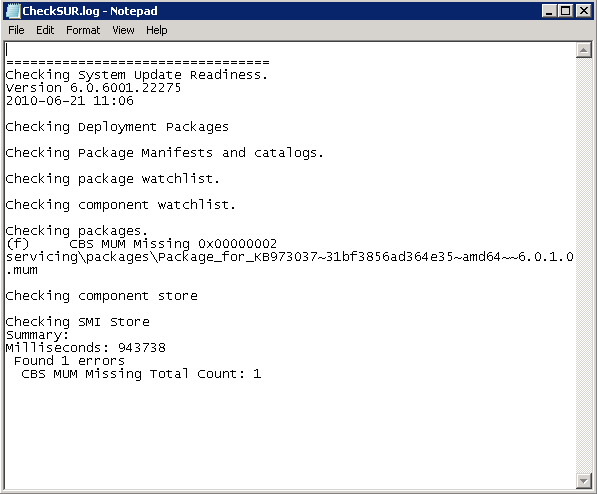
I then went and downloaded the "System Update Readiness Tool" which checks the CBS component corruption. After it finished running it dumps its results to C:\Windows\logs\CBSCheckSUR.log. In this log file it also mentioned the same KB article as the corrupt one above:

=================================
Checking System Update Readiness.
Version 6.0.6001.22275
2010-06-21 11:06

Checking Deployment Packages

Checking Package Manifests and catalogs.

Checking package watchlist.

Checking component watchlist.

Checking packages.
(f) CBS MUM Missing 0x00000002 servicing\packages\Package_for_KB973037~31bf3856ad364e35~amd64~~6.0.1.0.mum

Checking component store

Checking SMI Store
Summary:
Milliseconds: 943738
Found 1 errors
CBS MUM Missing Total Count: 1


It was now determined that the cause of the issue was from microsoft update KB973037. I went and manually downloaded the update from:

http://www.microsoft.com/downloads/details.aspx?familyid=17F5F9E0-5869-41DA-9B3B-6E67540AF1F0&displaylang=en

I renamed the .msu file to .cab to allow me to extract it. Inside the extraced file there was another .cab file Windows6.0-KB973037-x64.cab which I had to extract. The file Package_for_KB973037~31bf3856ad364e35~amd64~~6.0.1.0.mum did not exist in the directory!

As a result I had to rename the update.cat and update.mum files in the extracted directory to:
Package_for_KB973037~31bf3856ad364e35~amd64~~6.0.1.0.mum
Package_for_KB973037~31bf3856ad364e35~amd64~~6.0.1.0.cat

These renamed files need to be copied to:

C:\Windows\servicing\Packages

However by default Administrators does not have access to this folder as all installations are done by the user account "TrustedInstaller". This is because standard user accounts can also install updates (if you allow them to with group policy). To give administrators full control take ownership of the packages folder, set permissions to full control, then give folder ownership back to TrustedInstaller! This is important - if "NT SERVICE\TrustedInstaller" is not owner updates can fail to install.

Now that you have access, copy the two files you renamed into this directory.

Try and open Server Manager.

Saturday, June 19, 2010

Exchange 2010 Role Based Access Control

In previous versions of Exchange such as 2000/2003 and 2007 the permissions were all done using ACLs (Access Control Lists). ACL's create many challenges when modifying permissions on mailboxes and active directory attributes especially when upgrading exchange versions, you need to ensure ACL modifications are maintained. Also troubleshooting problems that occurred due to ACLs being used in a nonstandard way can be very time consuming. Large enterprise companies needed to modify ACL's to keep their delegation of administrative structure in place.

In Exchange 2010 the Microsoft Exchange Team has completely changed the way the permission structure works. We now have whats called RBAC (Role Based Access Control). RBAC enables you to more closely align the roles you assign to users and administrators to the actual roles they hold within your organization without having to modify ACL's!

There are 7 core components you need to understand in RBAC:
- Management Role Groups
- Management Roles
- Management Role Entries
- Management Role Assignments
- Management Role Scopes
- Management Role Assignment Policies
- Direct User Role Assignment

Management Role Groups

Management role groups associate management roles with groups of administrators or specialist users. There are pre-defined Management role groups that come with Exchange 2010, and ones you can create yourselves. An example of a management role group is the Discovery Management RBAC role group, one that is used to grant users the ability to use the Multi-Mailbox Search feature.

Management role groups are actually "Special Universal Security Groups (USG)". They can contain many different types of nested objects such as:
- Users
- Mailboxes
- USGs
- Other Role Groups

Management Roles

Management roles are used to define a list of tasks that can be performed. Tasks can include things like powershell cmdlets, scripts, or special permissions that enable a specific task to be performed.

Management roles can be be used by multiple management role groups through the use of management role assignments.

Management Role Entries

Management Role Entries are individual entries on a management role that determine what cmdlets and parameters are available to the management role. Each role entry consists of only a single cmdlet (and associated parameters), script or special permission enabled to perform a specific task.

There are loads of pre-made management role entries with Exchange 2010 such as:
- MyBaseOptions
- MyContactInformation
- MyVoiceMail
- MyRetentionPolicies
- ResetPassword

The list goes on for ages... these are the default ones for the default Management Role Assignment Policy which you will read about below.

When creating a management role you select a whole bunch of management role entries.

Management Role Assignments

Management Role Assignments are the things that link the roles to the groups. By Assigning a role to a role group, this grants members of the role group the ability to use the cmdlets and parameters defined in the role.

Management Role Assignments are linked directly to the roles.

Assignments <--linked--> Roles

Role Assignments can also be linked directly to user accounts, they do not always have to be linked to a Management Role Group.

A role assignee is a role group, role assignment policy, a user, or a universal security group (USG). Management Role Assignment objects contain one or more of these role assignees.

By default only the Organization Management role group has the ability to assign roles and other role assignees. Only the user that installed Exchange 2010 is a member of the Organization Management role group by default. You can, however, add other users to this role group as needed, or create other role groups and assign delegate role assignment to those groups. I recommend adding in Domain Admins into the Organization Management role group for each domain in your forest. Delegating role assignments enables role assignees to delegate management roles to other role assignees.

Management Role Scopes

Management Role Scopes limit what parts of the of an exchange organisation can be managed by management role assignment. For example you may only want a role group to administer group memberships of a bunch of distribution groups in a particular organisational unit in a certain domain, instead of allowing them the ability to administer permissions on every distribution group in a forest. Also you may only want some users to be able to delete and create mailboxes on a particular server, or a particular DAG. Scopes can consist of things such as servers, organisational units, and filters on active directory objects.

Note: Management Role Scopes are linked to the Management Role Assignments!

Management Role Assignment Policies

Management Role Assignment Policies are collections of one or more end-user management roles that enables end users to manage their own mailbox and distribution group configuration. Role assignment policies enable you to control which specific mailbox and distribution group configuration settings your end users can modify. Different groups of users can have different role assignment policies specialized to them. The default role assignment policy that comes with Exchange 2010 allows users to configure their voice mail, setup retention policies, reset their password and change their address information. However you may want to extend this, for example you may want users by default to be able to send SMS text messages.

Role Assignment Policies need to be linked to Role Assignments.

Management Role <--linked--> Management Role Assignment <--linked--> Management Role Assignment Policy

What a role assignment policy does is automatically assign role assignments (which are then linked to management roles) to users mailboxes upon creation. Think of "Email Address Policies", they automatically set the user up with a standard email address upon creation. If you want to change your users email address convention across the board, you can simply modify your email address policy. You can also have multiple email address policies linking to different user's with different needs by using filters. Same thing applies with management role assignment policies! You can also prevent any role assignment policies from being assigned whenever creating a mailbox - something I do not recommend as it will increase the amount of administration and leave room for error when setting up new users.

If you want to change what roles are assigned to role assignment policies, you need to change the role assignments that link the role assignment policy to the roles. Unless the assignments built into Exchange 2010 don't suit your needs, you won't have to change these assignments.

As mentioned earlier, with management role assignment policies they only provide configuration settings for users to be able to modify their own exchange specific attributes for example items on their mailbox. Because of this, you may have guessed when creating a role assignment between a role assignment policy and a management role, you cannot specify a scope! A predefined scope ACL is set, either "SELF" or "MYGAL" depending on the particular management role its applying to.

There are two types of role assignment policies in Exchange 2010:
- Default Role Assignment Policy
- Explicit Role Assignment Policy

Default Role Assignment Policy

A default role assignment policy is the one automatically assigned to a mailbox when it is created or moved to a server running Exchange 2010, and the role assignment policy awasnt provided using the RoleAssignmentPolicy parameter on the New-Mailbox or Enable-Mailbox cmdlets.

Exchange 2010 includes a default role assignment policy that provides end users with the permissions most commonly used. You can change the default permissions on the default role assignment policy by adding and removing management roles to or from it.

If you want to replace the built-in default role assignment policy with your own default role assignment policy, you can use the Set-RoleAssignmentPolicy cmdlet to select the new default. When you do this, any new mailboxes are assigned to the role assignment policy you specified by default if you don't explicitly specify a role assignment policy.

When you change the default role assignment policy, mailboxes assigned the default role assignment policy aren't automatically assigned the new default role assignment policy. If you want to update previously created mailboxes to use the role assignment policy you've set as default, you must use the Set-Mailbox cmdlet to do so. You can always pipe to do all of them, eg Get-Mailbox Set-Mailbox.

Explicit Role Assignment Policy

An explicit role assignment policy is a policy that you assign to a mailbox manually using the RoleAssignmentPolicy parameter on the New-Mailbox, Set-Mailbox or Enable-Mailbox cmdlets. When you assign an explicit role assignment policy, the new policy takes effect immediately and replaces any previously assigned explicit role assignment policies.

Direct User Role Assignment

Direct user role is an advanced method for assigning management roles directly to a user or universal security group (USG) without using a role group or role assignment policy. Direct role assignments can be useful when you need to provide a granular set of permissions to a specific user and no other.

Using direct role assignments will significantly increase the complexity of your security model. If a user changes jobs or leaves the company, you will need to manually remove the assignments and add them to the new employee. I strongly recommend you never use Direct User Role Assignment and you always go down the path of management role groups and management role assignments. I really don't know why the Microsoft Exchange Team included this feature - maybe for Small Business, but I can see it causing complications in the enterprise organisations!

Role Based Access Control Diagram

I put together a diagram illustrating how it the components fit together. Please not that this diagram does not depict direct user role assignment.


Role Based Access Control Summary

Some key points I want you to take away with you from this:

- One or more administrators/users can be a member of a role group.

- One administrator/user can be a member of more then one role group.

- The role group is assigned one or more role assignments. These link the role group with one or more administrative roles that define what tasks can be performed.

- The role assignments can contain management scopes that define where the users of the role groups can perform actions. The scope determines where the users of the role group can modify configuration.

- One or more users can be associated with a role assignment policy.

- A role assignment policy is assigned to one or more role assignments. These link the role assignment policies with one or more end-user roles. The end-user roles define what the user can configure on his or her mailbox.

- The role assignments between role assignment policies and roles have built-in scopes that restrict the scope of assignments to the user's own mailbox or distribution groups.

- A role assignment can be created directly between a user or USG and one or more roles. The role defines what tasks the user or USG can perform. The role assignment can contain management scopes that define where the user or USG can perform actions. The scopes determine where the user or USG can modify configuration.

- Role assignment policies can't be assigned delegated role assignments.

Wednesday, June 16, 2010

Debug Logging for Folder Redirection

In addition to logging events in the Application Event log, Folder Redirection can provide a detailed log to aid troubleshooting. To create a detailed log file for folder redirection, use the following registry key:

HKLM\Software\Microsoft\Windows NT\CurrentVersion\Diagnostics

Set: FdeployDebugLevel = Reg_DWORD 0x0f

Note The log file can be found at: %windir%\debug\usermode\fdeploy.log

In pre-Vista versions of Windows, doing this will create the diagnostic log file %windir%\Debug\UserMode\fdeploy.log. For Vista, 2008 and Windows 7 however, doing this simply adds more detailed info to the event log.

Saturday, June 12, 2010

How to Enable Mailtips In Exchange 2010

If you are not up to speed on Mailtips I suggest you reading this article by the MS Exchange Team:

http://msexchangeteam.com/archive/2009/04/28/451193.aspx

To enable Mail Tips you need to use powershell with the Set-OrganizationConfig cmdlet. There are various components of mailtips you can enable or disable.

- MailTipsAllTipsEnabled. Controls whether MailTips are enabled. The default is $True.

- MailTipsExternalRecipientTipsEnabled. Controls whether MailTips for external recipients are enabled. The default is $False. External recipients are determined by reference to the accepted domains list. Any domain in this list is deemed internal; any other domain is deemed external.

- MailTipsGroupMetricsEnabled. Controls whether MailTips that depend on group sizes are enabled. The default is $True.

- MailTipsLargeAudienceThreshold. Controls the threshold for the number of recipients on a message before MailTips flags it as large. The default value is 25. This value is probably too low for large organizations, where big distribution groups are common. In this scenario, it makes sense to increase the value to 50 to stop MailTips from nagging users for no good reason.

- MailTipsMailboxSourcedTipsEnabled. Controls whether MailTips that depend on mailbox data such as out-of-office notices are enabled. The default is $True

Note: If all are enabled, it will increase load on your client access servers by 5%.

Monday, June 7, 2010

vssadmin - Microsoft Exchange Writer is Missing

I had a server that had the "Microsoft Exchange Writer" missing. When typing the following command from a command prompt all the VSS (Volume Shadow Copy) writers would come up besides the "Microsoft Exchange Writer".

"vssadmin list writers"

This is what the Microsoft Exchange Writer looks like should it come up:


If it does not come up in the list... to enable it navigate to the following registry key:

HKEY_LOCAL_MACHINE\SYSTEM\CurrentControlSet\Services\MSExchangeIS\ParametersSystem

Modify the "Disable Exchange Writer" registry key to a value of 0.

After this restart the "Exchange Information Store" service.

"vssadmin list writers" should now display the writer correctly.

Saturday, June 5, 2010

Exchange 2010 DAG Routing and CAS High Availability

In this blog post I wish to run through two key areas most Exchange Administrators do not know or have not come across with Exchange 2010. These are in my eyes, limitations in the product and need to be taken into close consideration when planning an Exchange 2010 enterprise infrastructure. As they are limitations to the product, it has not been documented very well by Microsoft and supporting Exchange communities.

Below we will cover:
- Database Availability Groups Routing
- CAS High Availability for Remote Sites

DAG Routing

For those of you who are not up to speed on Exchange 2010 Database Availability Groups I highly suggest you read my blog post on Exchange 2010 Database Mobility.

http://clintboessen.blogspot.com/2009/08/exchange-2010-database-mobility.html

As I illustrated previously, up to 16 servers can be a member of a DAG. Exchange mailbox servers have their own replication engine for replicating database transaction logs between servers running on TCP 64327 by default (can be changed). However there is no logic between this replication - take the following diagram for example.


Here is a DAG with only a single mailbox database. A passive copy of this database lies in every remote site. With DAG replication there is no smarts, there is no bridgehead server, no way of optimising which way replication traffic should go. The active mailbox database MDDB01 lies in London. This database is replicated everywhere. It needs to get to both Russia and Germany. Instead of copying it from London to Russia then Russia to Germany, it will copy it from London to Russia then London to Germany meaning the replication traffic needs to pass over the London to Russia path twice! This is something they may improve in the next version of exchange.

You can enable "encryption" and "compression" of replication traffic using powershell... the compression can help a little keeping bandwidth down.

CAS High Availability for Remote Sites

In Exchange 2010 your outlook clients talk to a Client Access Server for MAPI connectivity. The CAS then passes the requests on to the mailbox server. When you open outlook for the first time, Autodiscover will setup your outlook profile providing you with the closest CAS server to where your mailbox resides. These can be CAS Arrays, A bunch of CAS servers in a load balanced scenario.

What happens if you have a remote site with a single all in one exchange box running Mailbox, Hub Transport and Client Access roles that's a member of DAG replication for backup and off site recovery, and that server failed. Would users automatically fail over? The answer here is no. The reason being is because the DNS name they are pointing to is the local CAS server in that site, which in this instance is not highly available. The CAS server must be a member of a CAS Array to achieve automatic high availability. However saying this, the mailbox database is still online, as the next site in the priority list holding the passive copy has now become active. If the outlook clients changed their exchange server address to another CAS server in the organisation that is online, they will be able to get onto their email! Note that Outlook Anywhere/Outlook Web Access and Active Sync will always be highly available.

Thursday, June 3, 2010

Exchange 2003 Disk Failure - Restore Mailbox Database

I had an exchange 2003 server connected to a SAN using fibre channel. The LUN containing the mailbox database failed. When opening system manager and clicking on the storage group, the following error pops up:

An unknown error has occured.
ID no: 80040d1b
Exchange System Manager


First before you perform the restore you must perform the following steps:

Deleted the Reg Keys
HKEY_LOCAL_MACHINE\Software\Microsoft\Search\1.0\Applications\ExchangeServer_ServerName
HKEY_LOCAL_MACHINE\Software\Microsoft\Search\1.0\CatalogNames\ExchangeServer_ServerName
HKEY_LOCAL_MACHINE\Software\Microsoft\Search\1.0\Databases\ExchangeServer_ServerName
HKEY_LOCAL_MACHINE\Software\Microsoft\Search\1.0\Gather\ExchangeServer_ServerName
HKEY_LOCAL_MACHINE\Software\Microsoft\Search\1.0\Gathering Manager\Applications\ExchangeServer_ServerName
HKEY_LOCAL_MACHINE\Software\Microsoft\Search\1.0\Indexer\ExchangeServer_ServerName

then Started Exchange Setup Recovery:
:\setup\i386\setup.exe /disasterrecovery

Lastly reinstall Exchange 2003 Service Pack 2

The Exchange Setup Disaster Recovery gets the server ready for recovering the entire exchange mailbox database.

At this point you can restore the exchange mailbox database using NTBackup or other methods. In this environment I am using Symantec Backup Exec. For instructions on how to perform the restore using Symantec Backup Exec please see:

http://www.billthecomputerguy.com/itsupport/Disaster%20Recovery/Backup%20Exec%20Disaster%20Recovery%20for%20Exchange%202000%20or%202003.doc

Wednesday, May 26, 2010

How to find out which domain controller i'm talking to?

To find out which domain controller your PC is talking to, use the following command:

nltest /dsgetdc:domainname.local


This is very handy when testing your active directory sites and services topology to ensure it is setup correctly. If you want to understand the process in which a client computer locates its domain controller please see this post:

http://clintboessen.blogspot.com/2010/05/how-clients-locate-domain-controllers.html

Thursday, May 20, 2010

Application Management Error Event ID 102

I ran into the following problem when deploying managed software via group policy today. I received the following error in my event logs.

Event Type: Error
Event Source: Application Management
Event Category: None
Event ID: 102
Date: 5/21/2010
Time: 12:09:05 PM
User: NT AUTHORITY\SYSTEM
Computer: CITRIX2
Description:
The install of application Microsoft Office Professional Edition 2003 from policy Terminal Services Software Installation failed. The error was : This installation is forbidden by system policy. Contact your system administrator.


This error will occur if Windows Installer is not able to run. In my case what was preventing it is I had a group policy computer setting called "Disable Microsoft Windows Installer" set to "Enabled - Always". This policy is under:

Computer Configuration --> Administrative Templates --> Windows Components --> Windows Installer

After setting this to disabled temporarily, my group policy software deployment worked.

How Clients Locate Domain Controllers

When a computer attempts to locate a domain controller, a process called the domain controller locator (Locator) is initiated so the appropriate Active Directory domain controller can be located. Locator uses information that is stored in Active Directory and DNS to attempt to find a domain controller with the desired roles and that is located in a site closest to the client.

The Locator uses information that is defined in the Configuration container in the forest root domain, which is replicated to every domain controller in the forest. Site objects, subnet objects, and domain controller server objects are all imperative for the Locator to find the closest domain controller for a client computer. Site objects are used to represent Active Directory sites. Subnet objects are used to represent IP address segments and are associated with the appropriate site object. Domain controller server objects are used to represent domain controllers and are associated with a site object.

Active Directory domain controllers register DNS records that specify the site in which the DC resides. The number of DNS records that each domain controller registers depends on the roles the DC has. For example, a DC that is a Global Catalog server will register an additional DNS record that advertises itself as such. Similarly, a domain controller that holds an Operations Master role will register a DNS record that advertises itself as this.

The process for a client computer to locate a domain controller is as follows:

1. The Locator is initiated on the client computer as a remote procedure call (RPC) to the local Net Logon service.

2. The client collects the information that is needed to select a domain controller and passes the information to the Net Logon service.

3. The Net Logon service on the client computer uses the collected information to build a query to send to DNS to identify the appropriate domain controller.

4. The Net Logon service on the client computer sends a datagram to the discovered domain controllers.

5. The directory service intercepts the query and passes it to the Net Logon service on the domain controller.

6. The Net Logon service on the domain controller looks up the client IP address in its subnet-to-site mapping table by finding the subnet object that most closely matches the client IP address and then returns the following information to the client: the name of the site in which the client is located, or the site that most closely matches the client IP address; the name of the site in which the current domain controller is located; and a bit that indicates whether the found DC is located in the site closest to the client.

7. The client inspects the information to determine whether it should try to find a better domain controller. The decision is made as follows: If the returned domain controller is in the closest site, the client uses this domain controller; If the client has found a DC in the site in which the DC claims the client is located, the client uses this domain controller; If the DC is not in the closest site, the client updates its site information and sends a new DNS query to find a new DC in the site. If the second query is successful, the new DC is used. If the second query fails, the original DC is used.

8. If the domain that is being queried by the client is the same as the domain to which the computer is joined, the site in which the computer resides is stored in the registry on the client computer.

9. After the client locates a DC, the domain controller entry is cached. If the domain controller is not in the optimal site, the client flushes the cache after fifteen minutes and discards the cache entry. It then attempts to find an optimal domain controller in the same site as the client.

In the case where a client computer uses an IP address that is not represented in the subnet-to-site mapping table, the DC returns a NULL site name and the client uses the returned domain controller, which may reside in any Active Directory site.

To find out which domain controller your PC is talking which is handy for trouble shooting purposes visit this blog post:

http://clintboessen.blogspot.com/2010/05/how-to-find-out-which-domain-controller.html

Please note that the contents of this blog post was written by John Policelli as part of the article "Using Catch-All Subnets in Active Directory". John Policelli reserves all rights to the content posted above. Please view the original article posted here:

http://technet.microsoft.com/en-us/magazine/2009.06.subnets.aspx

Wednesday, May 19, 2010

How to import NK2 Files into Outlook 2010 Suggested Contacts

To import contacts from your old outlook.nk2 file into Exchange 2010 Suggested contacts follow this procedure:

To import .nk2 files into Outlook 2010, follow these steps:

1. Make sure that the .nk2 file is in the following folder:
%appdata%\Microsoft\Outlook

Note The .nk2 file must have the same name as your current Outlook 2010 profile. By default, the profile name is "Outlook." To check the profile name, follow these steps:

a. Click Start, and then click Control Panel.
b. Double-click Mail.
c. In the Mail Setup dialog box, click Show Profiles.

2. Click Start, and then click Run.

3. In the Open box, type outlook.exe /importnk2, and then click OK. This should import the .nk2 file into the Outlook 2010 profile.

Note After you import the .nk2 file, the contents of the file are merged into the existing nickname cache that is currently stored in your mailbox.

After the import is finished the .nk2 gets renamed with an . file name extension on the first start of Outlook 2010. Therefore, if you try to re-import the .nk2 file, remove the . file name extension.

Monday, May 17, 2010

msExchMasterAccountSid For Disabled Accounts

I moved all exchange mailboxes from one Exchange 2003 server to another Exchange 2003 server. After the migration of these user mailboxes I received the following errors only for disabled accounts.

Event Type: Warning
Event Source: MSExchangeIS
Event Category: General
Event ID: 9548
Date: 5/18/2010
Time: 9:15:46 AM
User: N/A
Computer: MAIL1
Description:
Disabled user /o=Company Organisation Name/ou=First Administrative Group/cn=Recipients/cn=User Name does not have a master account SID. Please use Active Directory MMC to set an active account as this user's master account.


Event Type: Error
Event Source: MSExchangeIS Mailbox Store
Event Category: Logons
Event ID: 1022
Date: 5/18/2010
Time: 9:15:49 AM
User: N/A
Computer: MAIL1
Description:
Logon Failure on database "Storage Group 01\Mailbox Database" - Windows 2000 account NT AUTHORITY\SYSTEM; mailbox /o=Company Organisation Name/ou=First Administrative Group/cn=Recipients/cn=User Name.
Error: -2147221231


To resolve this issue I had to give the account "SELF" permissions for "Associated external account". If the user does not have these permissions to its own account it is unable to set the msExchMasterAccountSID attribute for the disabled account causing the error. By setting this permission on the disabled account, it allows it to mark the msExchMasterAccountSID attribute.

To do this follow this procedure:

1. In the Active Directory Users and Computers snap-in, on the View menu, click Advanced Features.

2. In the Exchange Advanced properties of the disabled user object that owns the mailbox, click Mailbox Rights, and then search the list of accounts for one that has the Associated External Account permission.

4. If no account has this permission, grant the SELF account Associated External Account and Full Mailbox Access permissions.


For further information on this issue please see the below Microsoft knowledge base article.

http://support.microsoft.com/kb/278966

Sunday, May 16, 2010

SQL 2008 Licensing

I just found a very handy site worth blogging. Please check this site out if your looking to purchase SQL 2008 as you will need to understand how the licensing works.

http://www.microsoft.com/sqlserver/2008/en/us/licensing-faq.aspx

Sunday, May 9, 2010

Desktop not Refreshing with Folder Redirection

I have a Windows 2003 terminal server with the desktop being redirected to network share. Whenever users modify or change files on the terminal server, it does not refresh. If a user presses F5 the desktop then updates.

The following registry key from microsoft KB823291 fixes this problem bust must be done per user profile.

1. Locate and then click the following key in the registry:
HKEY_CURRENT_USER\Software\Microsoft\Windows\CurrentVersion\Policies\Explorer

2. On the Edit menu, point to New, and then click DWORD Value.
Type NoSimpleNetIDList, and then press ENTER.

3. On the Edit menu, click Modify.

4. Type 1, and then click OK.

To apply this to all user profiles I created an ADM file by exporting the registry key and using RegtoAdm from NUTS admin tools which I then applied with a loopback policy to the terminal servers.

You can download the NUTS admin tools from here:

http://yizhar.mvps.org/

Wednesday, May 5, 2010

VB Script - Delete Files Older then X Days

I whipped up handy VB Script that will delete files older then X days in any particular folder. In this case any files that are older then 3 days will be deleted.

Dim Fso, Directory, Modified, Files

Set Fso = CreateObject("Scripting.FileSystemObject")
Set Directory = Fso.GetFolder("C:\FolderContainingFiles")
Set Files = Directory.Files
For Each Modified in Files
If DateDiff("D", Modified.DateLastModified, Now) > 3 Then Modified.Delete
Next

View MPSReports

Microsoft have a tool called Microsoft Product Support Reports also known as MPSReports. If you have done a support call to Microsoft in the past, you would have used MPSReports. What MPS Reports does is grab all the config about how your system is setup that is relevant to diagnosing issues, ZIP them up and allow the user to send the information to an IT professional (normally Microsoft).

I personally have been using MPSReports for years. I'd get a client to run MPSReports on their server experiencing problems, then send me the MPSReports results. I'd then dig through all the log files that came packaged up and diagnose the problem. This was very painful however as its hard to know what file contains what information.


The Microsoft support guys have a tool that lets them easily dig through the data generated by MPSReports, a "viewer" tool. I have been asking them on the phone for some time to give us a copy. The response was always "It's a tool designated to Microsoft Support Employee's". I'd be like pleaseeeeeeeeee!!!

Today I saw that as of the 30th of March 2010 Microsoft has made this viewer tool available to the public. It is called Microsoft Product Support Reports Viewer 2.0. Download it from:

http://www.microsoft.com/downloads/details.aspx?displaylang=en&FamilyID=fb414a72-ccef-4f14-8c76-b846a0f2182d


Tuesday, May 4, 2010

Cross-File DFS in Windows Server

A colleague of mine taught me something new about the RDC (Remote Differential Compression) cross-file feature DFS-R technology in Windows Server. Cross-file is not available in all version of windows server.

Cross-File RDC is available in:
- Windows Server 2003 R2 Enterprise Edition
- Windows Server 2008 Enterprise Edition
- Windows Server 2008 R2 Enterprise Edition
- Windows Server 2008 R2 Datacenter Edition

Cross-File RDC is not available in:
- Windows Server 2008 R2 Standard Edition
- Windows Server 2008 Standard Edition
- Windows Server 2003 R2 Standard Edition
- Windows Server 2008 Datacenter Edition
- Windows Server 2003 R2 Datacenter Edition

DFS Cross-File is a part of the RDC technology in DFS-R technology. What Cross-File does is instead of replicating the entire file, DFS Replication can use portions from files that are similar to the replicating file to minimize the amount of data transferred over the WAN. If you are planning to use this, ensure to use Enterprise Edition of windows server!

This information about what flavours of windows server cross file is available under is documented here:

http://technet.microsoft.com/en-us/library/cc773238.aspx